

Tailored Phishing Simulations and Training
Tailored Phishing Simulations and Training runs phishing simulation campaigns built from the attacks Sublime detects in your environment, then trains employees on the exact email they clicked. Campaigns run natively inside Sublime on Google Workspace and Microsoft 365. It is a paid add-on to Sublime Enterprise, available through Support or your Customer Success representative.
Requirements
- An active Sublime Enterprise subscription with an active Google Workspace or Microsoft 365 message source. Sublime only sends simulations to mailboxes in an active message source.
- Tailored Phishing Simulations and Training enabled for your account. Contact Support or your Customer Success representative to get started.
- The Track Link Clicks Action turned on. Sublime needs it to record clicks on simulation links. Turning it on doesn't rewrite URLs in your mail.
Other API-based email security tools: If you run another API-based email security tool alongside Sublime, that tool can flag or remove simulation emails. Add an exclusion for Sublime simulations in that tool before your first campaign.
Enterprise self-hosted deployments on AWS: The Click Tracking Service must be configured before launching a campaign. If the service is not set up, campaign delivery fails for each recipient at send time. See Setting up a domain for Track Link Clicks and Quarantine Digests and follow the Phishing Simulations step. Also turn on the Track Link Clicks Action, as described above.
Creating a campaign
-
In Sublime, go to Compliance > Phishing Simulations and click Create campaign.
-
Enter campaign details:
- Name: an internal label for the campaign.
- Start date and time: when the campaign starts. If the start time has already passed, emails send immediately.
- Monitoring Duration: how long the campaign collects metrics, up to six weeks. Monitoring Duration controls the reporting window only. Recipients who open the email after the end date see the Notice page and still receive automation responses, but those interactions don't appear in campaign results.
- Delivery mode: Deliver immediately sends every email at the start time. Staggered Delivery spreads delivery across a schedule and a daily send window, at randomized intervals. The delivery schedule must be shorter than the Monitoring Duration. Large audiences take a few minutes to land in every inbox.
-
Choose an Audience: select a Sublime list backed by a Microsoft 365 OU, a Google Group, or a User Group, or upload a CSV. The CSV template includes an email column and an optional group column. String lists don't appear in the audience picker.
-
Select one or more Templates (see Templates below). If you select multiple templates, Sublime assigns each recipient one at random. To send a specific template to a specific group, create separate campaigns.
-
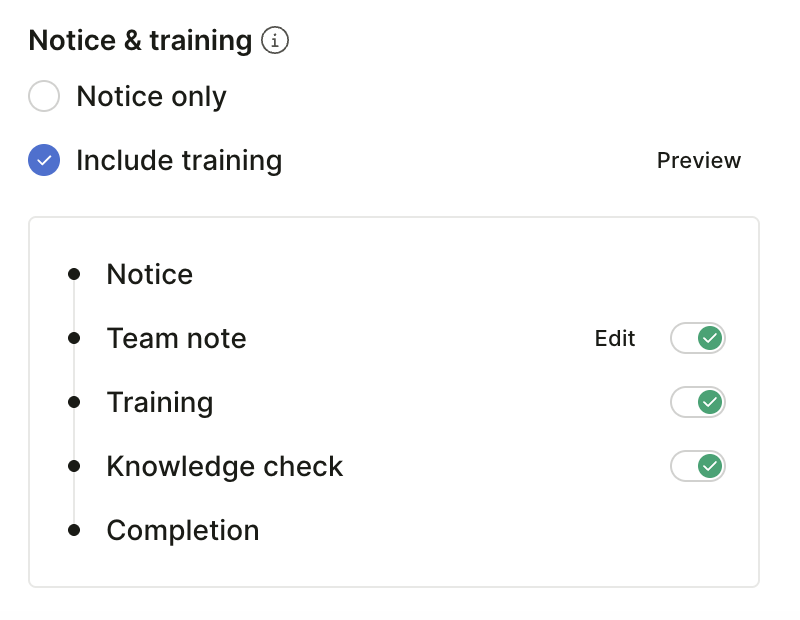
Under Notice & training, choose what recipients see after they click:
- Notice only: a landing page confirming the message was a phishing simulation.
- Include training: add any of a team note, just-in-time training, and a knowledge check. See What email recipients see.
-
Preview the email before launching. Template view shows where dynamic fields appear. User view shows the dynamic fields filled in for a sample recipient. Use the drop-down on the right to switch between templates. You can edit the Sender email, Sender alias, and Subject here.
-
Click Review & Launch to review the campaign, then click Launch campaign.
Templates
Every simulation uses a template. In the Templates section of the campaign builder, click Add From Library to choose an existing template, or click Generate to create one From My Environment or From a Scenario.
Every template must contain a link. Sublime tracks clicks and shows training through that link.
Template library
Sublime's detection team builds and maintains the template library. Each template maps to the detection rules that catch that attack type, and Add From Library groups templates by real activity in your environment:
-
Saved Templates: templates your team saved to the library, including generated ones.
-
Similar to most active attacks in your environment: the five templates whose attack types Sublime sees targeting your organization most often.
-
Similar to attacks recently seen: templates for techniques Sublime saw recently in your mail flow.
-
All Templates: every template in the library.
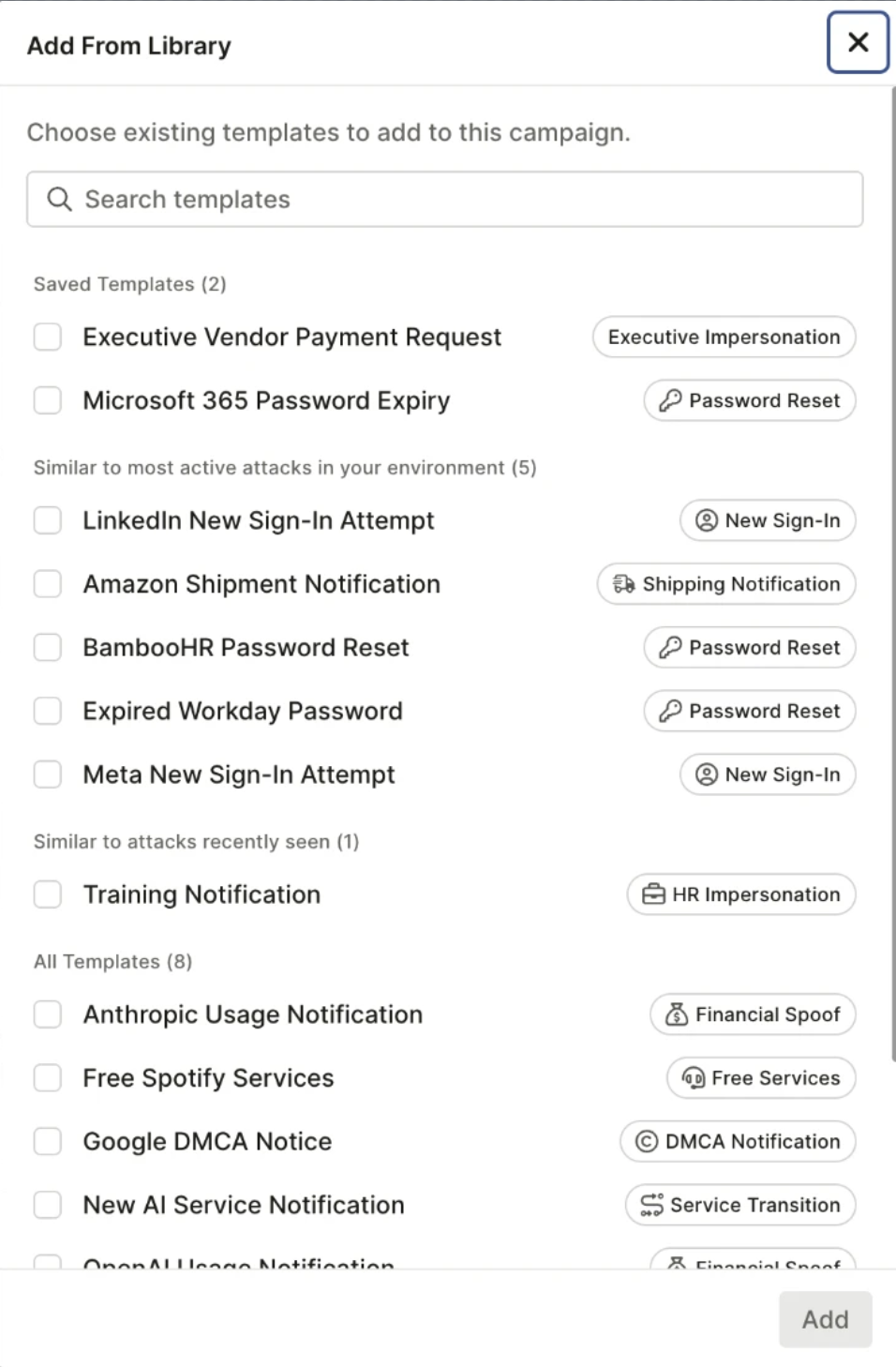
Because these groups come from detection rule activity, they reflect the broader attack category. For example, a billing-notice template from a specific vendor carries the activity of financial fraud detections overall.
Generate from environment
Turn any email your organization received into a reusable simulation template. Click Generate > From My Environment, paste the Sublime Message URL from the message's Message Detail View, and click Generate. Sublime builds the template: it keeps the original images, inserts personalization fields, and strips personal information. The source message does not need to be malicious.
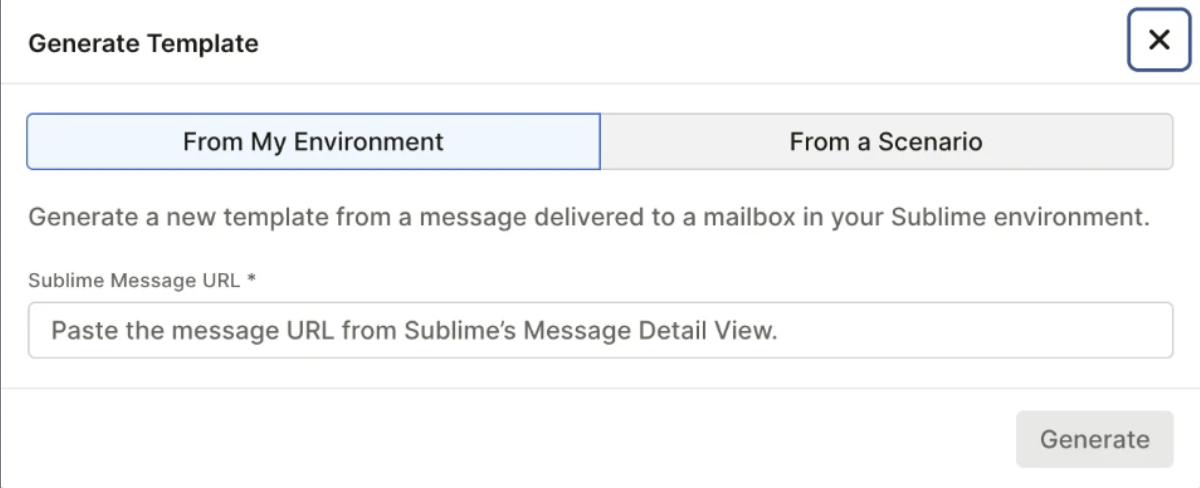
Save the generated template to your library to reuse it in future campaigns.
Fully custom templates: Only the sender email, sender alias, and subject are editable in the campaign builder. To run a fully custom email, write it in Gmail or Outlook, send it to yourself, and turn it into a template with Generate from environment.
Generate from scenario
Build a synthetic template with no source email. Click Generate > From a Scenario and choose an Attack type, such as callback phishing. Optionally, pick an Email scenario. The scenarios available depend on the attack type. Under Tone & difficulty, set the Difficulty, Urgency, Formality, and Vendor realism, then click Generate.
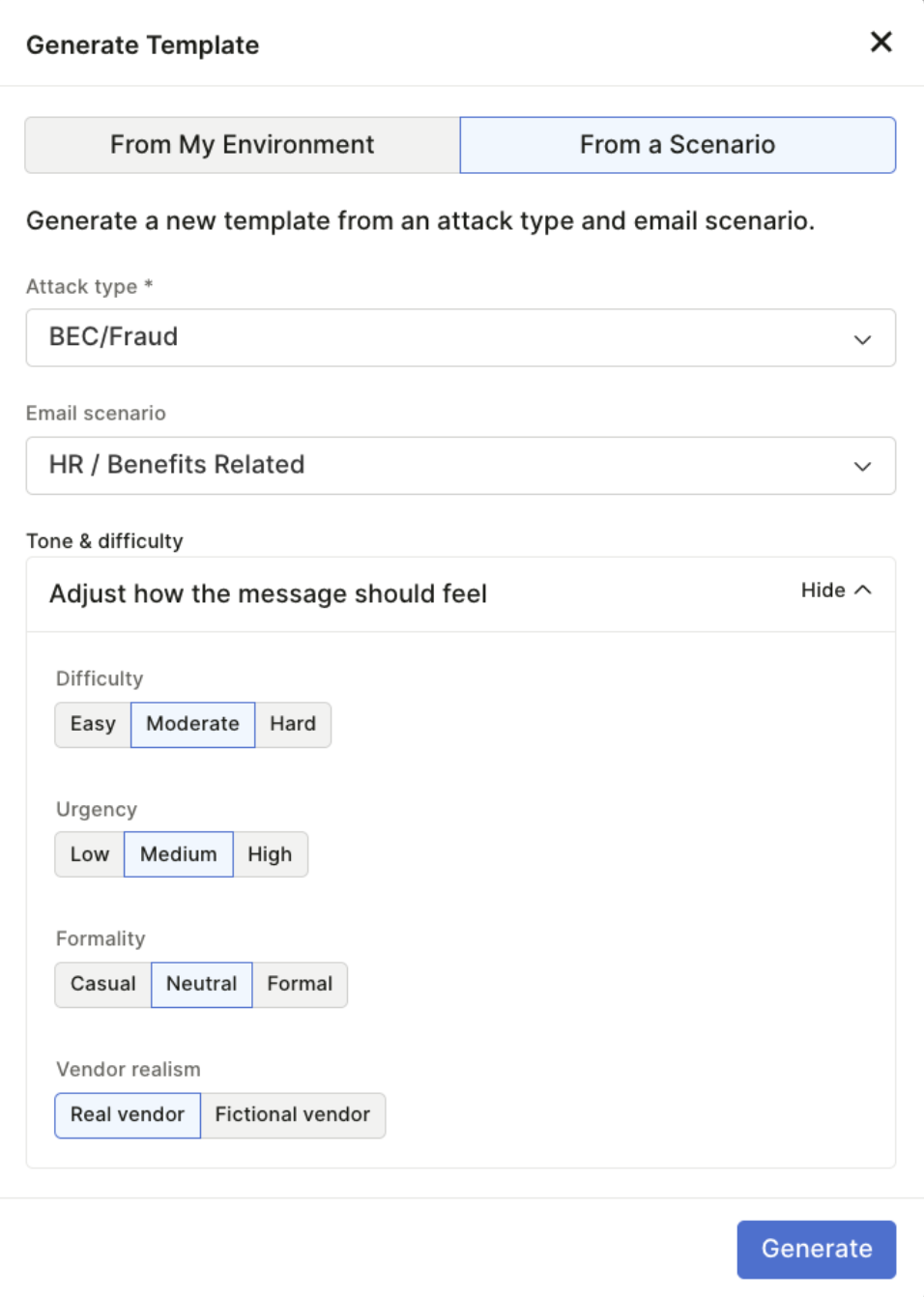
Save the generated template to your library to reuse it in future campaigns.
What email recipients see
When a recipient clicks a link in a simulation email, Sublime redirects them to a landing page. Recipients don't need to log in. The page shows whichever components you enabled for the campaign:
Team note: an image and text you write. Save a team note as the default to reuse it across campaigns.
Just-in-time training: three to six AI-generated red flags drawn from the specific template the employee clicked.
Knowledge check: a short question about the simulation. Requires training. Any response counts toward completion.
If you chose Notice only, recipients see a landing page confirming the message was a phishing simulation.
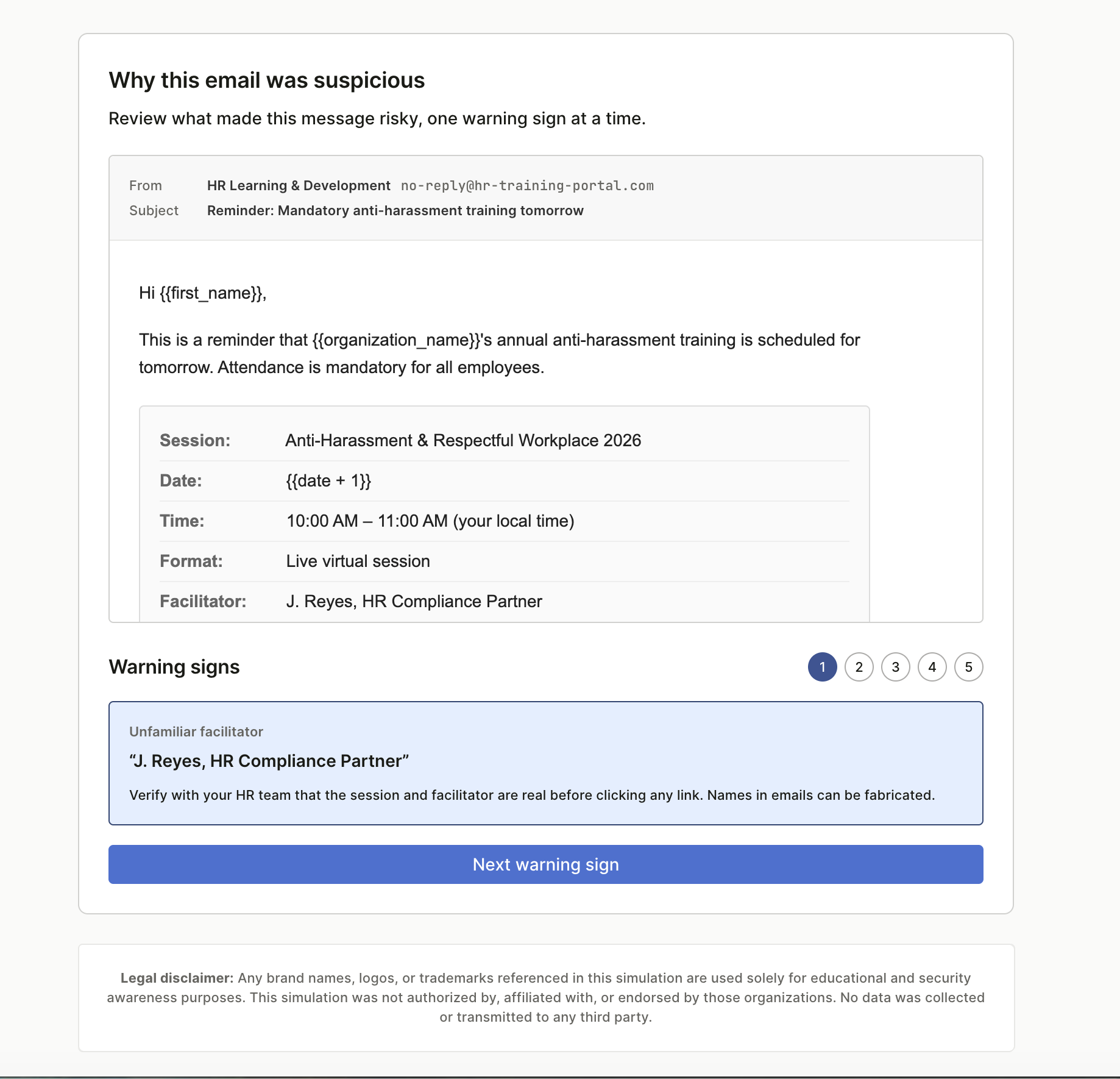
Sublime records clicks and training completions in the campaign's results.
Just-in-time training
Sublime generates training content from each template at campaign launch. The red flags shown to an employee who clicked a credential-harvesting simulation describe credential harvesting and the specific signals in that email.
Admin preview
Before launching a campaign, preview the AI-generated red flags and knowledge check for each selected template in the campaign builder. Use the template drop-down on the preview step to switch between templates. Red flags and knowledge check questions are not editable.
Reporting
Per-campaign results
Click any Sending, Active, or Completed campaign on the Phishing Simulations page.
- Simulation tab: each recipient's outcome (clicked, replied, forwarded, reported, opened, delivered) and template. Recipients who are top targets for malicious messages are flagged.
- Training tab: recipients who reached the training page, whether they completed it, and their knowledge check result. This tab lists only recipients who reached training, so its counts differ from the Simulation tab.
Each tab has its own CSV export.
Cross-campaign dashboard
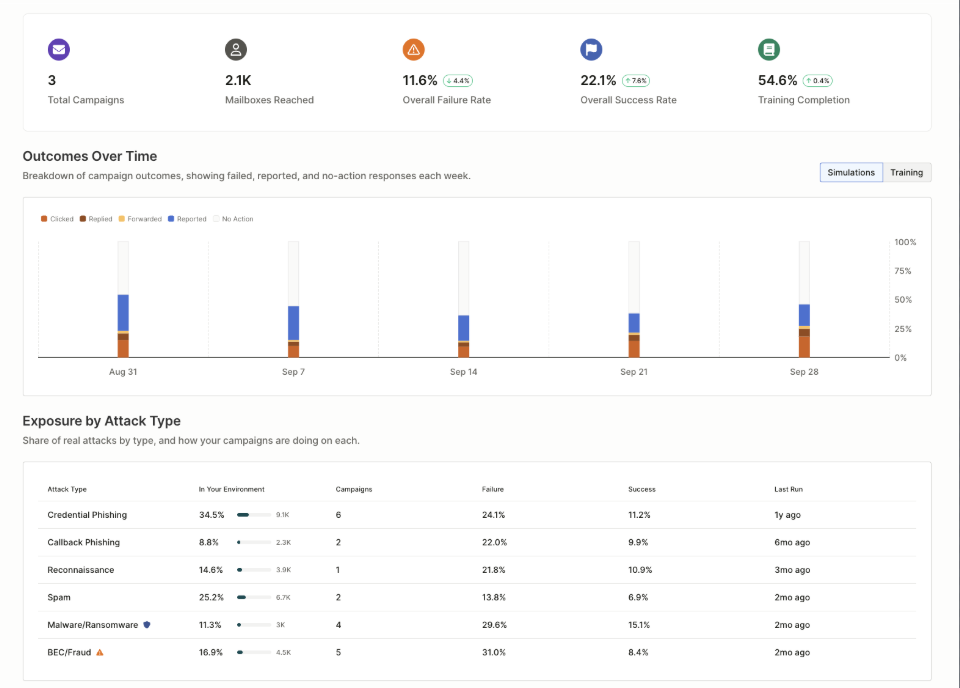
The Phishing Simulations Overview, in the Reports section, rolls up results across every campaign so you can show program progress and find who needs coaching. Filter by the last 3 months, 6 months, 1 year, or 2 years. Change indicators compare against the previous period of the same length.
-
Summary tiles: total campaigns, mailboxes reached, failure rate, success rate, and training completion.
-
Outcomes over time: simulation outcomes and, once your organization has training data, training outcomes.
-
Exposure by attack type: each attack type in your real detections, its share of real attacks, and your failure and success rates for simulations of that type. Attack types you haven't tested show No campaigns run, so you can see which real threats your employees haven't practiced against yet.
-
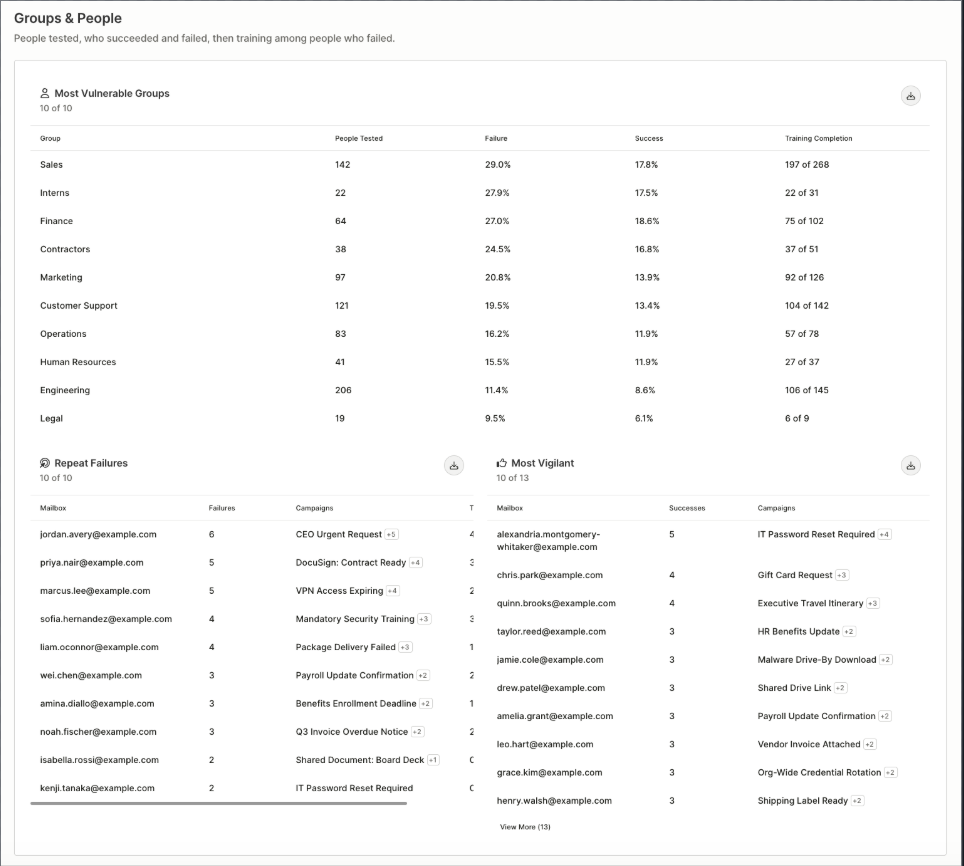
Most vulnerable groups: the 10 groups with the highest failure rates.
-
Repeat failures: people who failed two or more campaigns.
-
Most vigilant: people who reported simulations in one or more campaigns.
Tables show 10 rows on screen. Hover over a table header to export the full list as a CSV.
How simulation messages are handled in Sublime
Sublime recognizes its own simulation messages, marks them Auto-reviewed with a review of Simulation, and treats them as Excluded. This means:
- Simulations don't appear in the analyst queue or the abuse mailbox queue.
- Attack Score and ASA (Autonomous Security Analyst) do not run on simulation messages.
- Analysts cannot apply actions (Send EML, trigger ADÉ, block sender) to simulation messages from the Message Detail View.
- Simulation messages still appear in hunt and search results if they match a query.
Sublime only recognizes its own simulations. If you also run simulations from another vendor, such as KnowBe4 or GoPhish, add an exclusion for that tool, or Sublime treats those emails as real phishing.
Automations and user reports
If you use Close the loop with reporter or Acknowledge user report automations and want them to fire when a recipient reports a simulation, configure those automations to run on Excluded messages. See Auto Respond to User Reports for configuration steps. Otherwise, employees who report a simulation get no confirmation.
Roles and permissions
Tailored Phishing Simulations and Training uses two RBAC permissions:
| Permission | What it allows |
|---|---|
manage_phishing_sims | Create, send, and edit simulations |
read_phishing_sims | View simulations and results |
Admins have both permissions. The built-in Simulation Manager role also has both, plus everything an Analyst can do. It's built for people who run the awareness program, such as a security awareness lead or someone in GRC, without full admin access.
Because Simulation Manager includes Analyst access, it can view messages, including malicious ones. To give someone access to simulations only, create a custom role with manage_phishing_sims, read_phishing_sims, or both.
Anyone with read_phishing_sims sees every campaign in the organization, including campaigns other admins created.
See Role-Based Access Control for instructions on assigning roles.
Audit logs
Sublime writes every campaign action to the audit log. It records these events:
| Event | Description |
|---|---|
phishing_sim.campaign.created | A new campaign was created |
phishing_sim.campaign.canceled | A campaign was canceled |
phishing_sim.campaign.deleted | A campaign was deleted |
Each entry includes the acting user and a timestamp. See Export Audit Logs and Message Events.
FAQ
Do I need to configure allowlisting or mail-flow rules?
No. Sublime delivers simulation emails by direct API injection on both Microsoft 365 and Google Workspace. There is nothing to allowlist and no mail routing rules to configure.
Can I use a Microsoft Group as my recipient list?
Yes. Connect a Sublime list to a Microsoft Group and select that list as your campaign audience. See Lists.
Can I send simulations to all employees at once?
Yes. Start with one team or department to validate setup, then roll out company-wide. Use Staggered Delivery to avoid sending to every recipient at the same moment.
Can I create my own templates?
Not from scratch. Choose a template from the library, use Generate from environment to build one from a real email your organization received, or use Generate from scenario. For a fully custom email, write it in Gmail or Outlook, send it to yourself, and use Generate from environment.
What are the campaign states?
- Scheduled: launched, but the start time hasn't arrived. Scheduled campaigns can be deleted.
- Sending: emails are being delivered. Canceling a sending campaign stops the remaining emails. Emails already sent are not recalled.
- Active: every email has been sent and the campaign is collecting results.
- Completed: the end date has passed. The campaign and its results stay in the dashboard and can be archived.
What happens if a recipient interacts with a simulation after the campaign ends?
Recipients who open a simulation after the end date see the Notice page and still receive a confirmation if they report it, as long as your automations run on Excluded messages (see Automations and user reports).
Why does my Google Workspace campaign show 0% reported?
Check that your abuse mailbox is set up.
Are the red flags shown to employees specific to the email they clicked?
Yes. Sublime generates red flags from the template's content at campaign launch. An employee who clicked a particular simulation sees signals drawn from that template.
Does getting the knowledge check wrong prevent an employee from completing training?
No. Any response counts toward completion. It requires training to be enabled.
Can I edit the generated red flags before launching a campaign?
No. Preview the generated red flags in the campaign builder before launch. Editing is not available.
Can I use training completion records for compliance purposes?
Yes. The training CSV export gives per-employee, timestamped completion records.
Updated 1 day ago