

Microsoft 365 Configure “Report Phishing”
You can configure Sublime's Abuse Mailbox to ingest reports from Microsoft 365's native "Report phishing" and "Report junk" buttons.
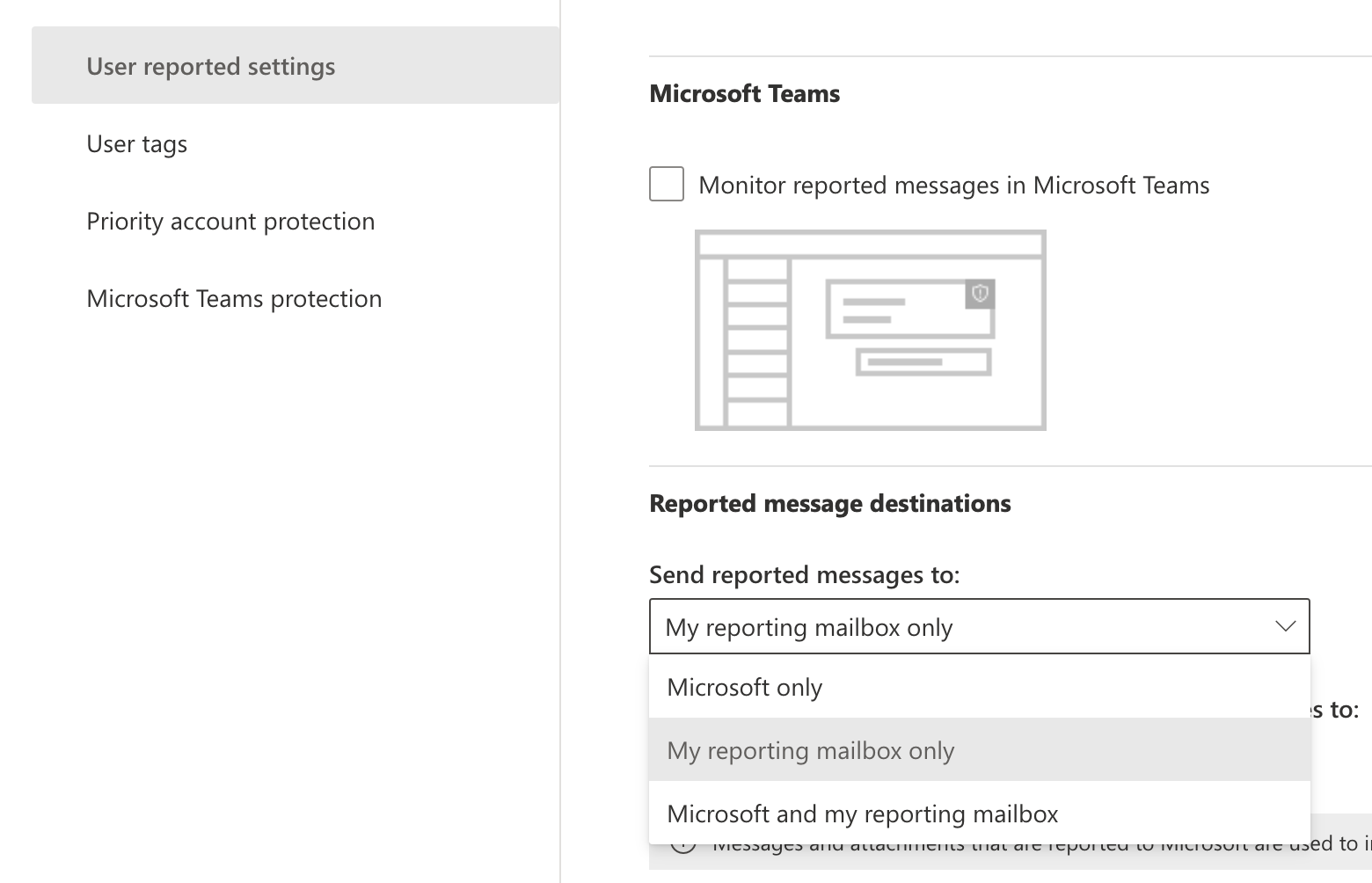
- Navigate to the User reported settings in Microsoft Defender
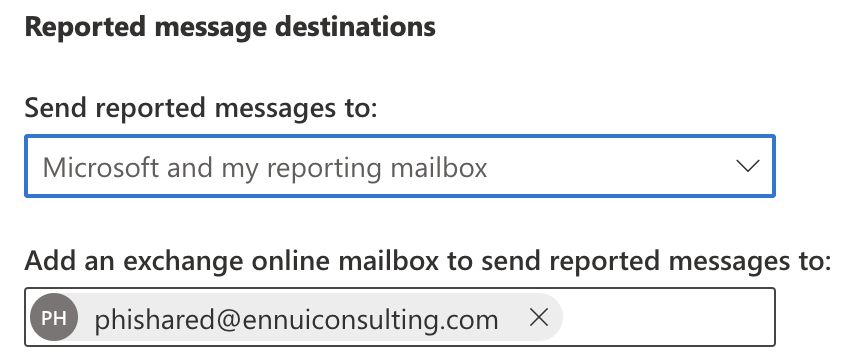
- Select the "Send reported messages to:" dropdown (pictured below) and choose "Microsoft and my reporting mailbox" or "My reporting mailbox only"
- Enter the Abuse Mailbox that you have configured in Sublime
- Click "Save"
Which report buttons Sublime processesOutlook's built-in Report button offers "Report phishing," "Report junk," and "Not junk," depending on how you configured user reporting. Older Report Message add-ins label these
Report as Phish,Report as Junk, andReport as Not Junk.The Abuse Mailbox processes both
PhishandJunkreports as user reports. Both appear under User Reports and both trigger any Automations you have configured for user reports.
Not JunkandNot Phishreports are ignored. Those tell Microsoft a message was safe rather than reporting a suspected attack.
What Outlook does to the messageMicrosoft applies its own actions before the report reaches your reporting mailbox, and those actions differ by report type. A message reported as junk is moved to the user's Junk Email folder and its sender is added to that user's Blocked Senders list. A message reported as phishing is deleted. Users also cannot report a message as junk from inside the Junk Email folder. See Microsoft's documentation for the current behavior.
If you built Automations or reporting that assumed every user report was a phishing report, revisit them.
Junkreports now arrive alongsidePhishreports, so expect a higher volume of user reports. The reported message's classification (malicious,spam,graymail,benign, orsimulation) is still what drives auto-replies to the reporter.
If using an IMAP message source, the native “report phishing” button will not send user reported phish to Sublime.
Updated 7 days ago