

AWS CloudFormation Install
Overview
This deployment uses AWS CloudFormation to create resources and run the Sublime Platform on Amazon Elastic Kubernetes Service (EKS) in your own AWS account.
Already running Sublime on AWS?The templates on this page are v2, which runs only on EKS. If your existing stack is on v0 or v1, don't deploy or update from the links on this page, and don't enable new features until you migrate. Contact Sublime to plan your migration to v2.
To check your version, open your
Sublime-Platformstack in CloudFormation and find theStackVersionvalue on the Outputs tab. A value that starts with2.is v2. If you don't see aStackVersionvalue, contact Sublime before updating.
GovCloud deploymentsAWS GovCloud deployments have prerequisite steps that are described here! You must complete these steps before moving forward with the steps listed below.
Requirements
Authorization requiredContact Sublime support so your AWS account(s) are authorized to pull images from Amazon ECR. Deployments from unauthorized accounts will fail. To request authorization, see Access Requests.
-
Admin permissions
A user with ~Admin permissions is required in order to deploy the stack and create the resources described below. Resources used are subject to change in the future, which is why we currently recommend Admin permissions (and an isolated AWS account, mentioned below). -
Dedicated AWS account
We recommend deploying the Platform in an isolated AWS account. This reduces the risk of errors, such as hitting AWS service resource limits, and overall makes things simpler to manage. -
A host name and certificate
Choose the host name you'll use to reach Sublime, for examplesublime.example.com. Before you deploy, request or import a certificate for that host in AWS Certificate Manager (ACM), in the same region you deploy to, and confirm its status is Issued. The platform's load balancer finds this certificate by host name through certificate discovery. Without a matching certificate, the load balancer isn't created. -
DNS access
You'll create a CNAME record for your host name after deployment, so you need access to the DNS zone for that domain.
Setup
To deploy the Stack, press one of the following region-specific deploy buttons, and click through the AWS web GUI console.
Use a dedicated AWS accountWe recommend deploying the Platform in an isolated AWS account.
This reduces the risk of errors, such as hitting AWS service resource limits, and overall makes things simpler to manage.
CF templates are region specific, do not change your region in the console after following a link.
us-east-2 (Ohio) deployment - 
us-west-2 (Oregon) deployment -
eu-west-1 (Ireland) deployment -
eu-west-2 (London) deployment -
eu-central-2 (Zurich) deployment -
eu-north-1 (Stockholm) deployment -
ap-southeast-2 (Sydney) deployment -
us-gov-west-1 (US GovCloud West, requires GovCloud account) deployment -
us-east-1 (N. Virginia, not recommended, please reach out to Sublime for details) deployment -
us-west-1 (California, not recommended, please reach out to Sublime for details) deployment -
ca-central-1 (Canada, not recommended, please reach out to Sublime for details) deployment -
Set platformingresshost to the host name from Requirements, for example sublime.example.com. The default value is a placeholder, so you must change it.
The default parameters are appropriate for many organizations, but if you have less than 4,000 mailboxes you may change the dbsizeparam to m6gXLarge1TB.
If you have more than 30,000 mailboxes, start with a dbsizeparam of m6g4XLarge4TB and a redissizeparam of cache.t3.medium. For organizations over 100,000 mailboxes, start with a dbsizeparam of m6g8XLarge8TB and a redissizeparam of cache.m5.large.
Leave the two params, "ddapikey" & "ddroleexternalid" empty. v2 templates don't use them. To share system health data with Sublime, see Usage data.
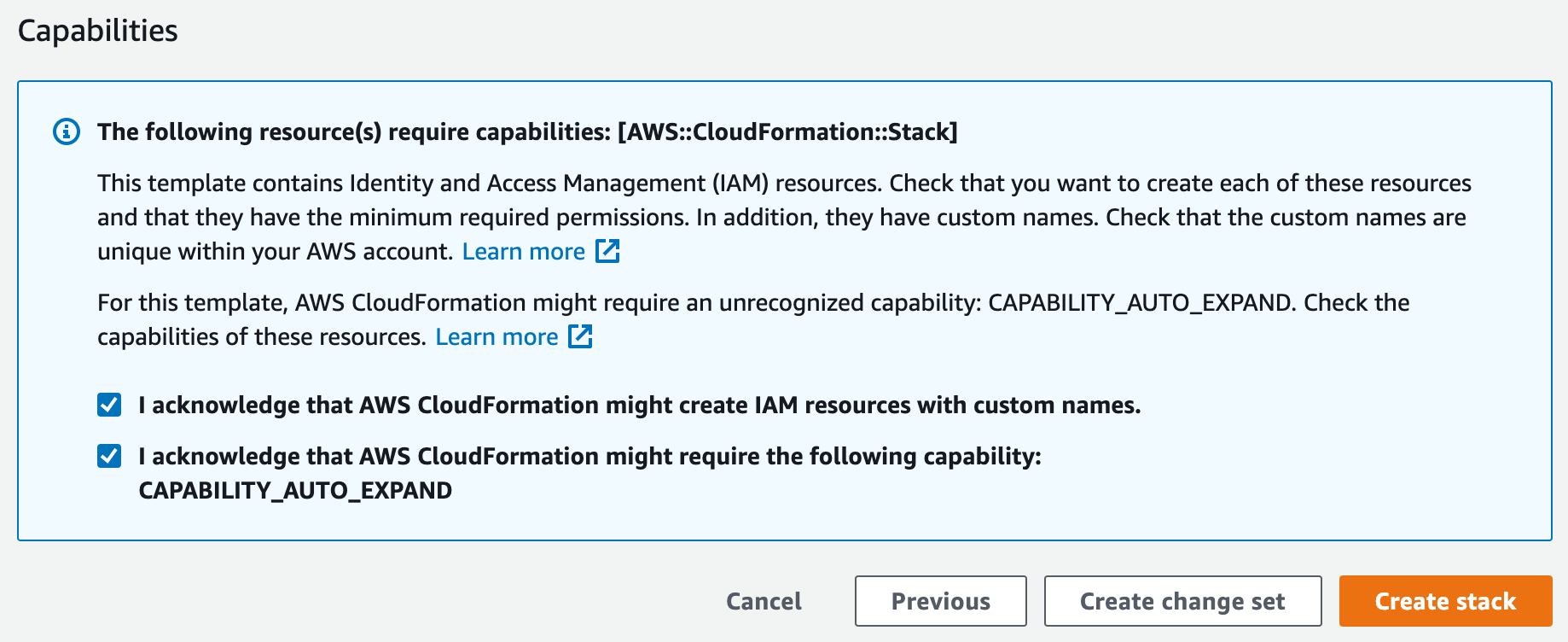
Acknowledge IAM permissionsWhen you get to the last page in the CloudFormation web app console GUI, right before the orange
Create Stackbutton, please ensure you check the following two IAM permissions. The deployment will fail if you do not check these two boxes. CloudFormation needs permissions to create these IAM roles for the deployment to succeed. Check both boxes.
View Dashboard
- Wait until the
Sublime-Platformstack shows "CREATE_COMPLETE". - In the EC2 console, go to Load Balancers and find the load balancer named
sublime-platform. Copy its DNS name (it ends inelb.amazonaws.com).- If the load balancer isn't there, check that
platformingresshostmatches your host name and that the ACM certificate for that host is Issued and not expired.
- If the load balancer isn't there, check that
- In your DNS provider, create a CNAME record pointing your host name to the load balancer's DNS name.
- Once DNS propagates, visit
https://<your host name>in your browser. - Bookmark this URL! The Dashboard will guide you through further setup.
Resources deployed
- Virtual Private Cloud (VPC) with a
10.0.0.0/16CIDR block - Public, private, and isolated subnets, with two NAT Gateways
- VPC endpoints for S3, ECR, Lambda, CloudWatch Logs, and SQS
- EKS cluster named
sublime-platform, with a private API endpoint - EC2 worker nodes for the cluster, including GPU instances, provisioned by Karpenter
- AWS Load Balancer Controller, which creates the
sublime-platformApplication Load Balancer (HTTPS on port 443 only) using your ACM certificate - RDS Postgres Database
- Elasticache (Redis)
- API Gateway
- SQS
- S3 Buckets
- Lambda functions
- Secrets Manager secrets for Postgres Password and access credentials
- AWS WAF web ACLs (applied when
enablewafistrue) - CloudTrail trail (when
enablecloudtrailistrue) - Security Groups to restrict access to the infrastructure
Production Readiness
We advise some additional steps to protect your Sublime Deployment from accidental mistakes.
- Go to RDS in your deployed region and find the sublime instance -- if you have multiple with random names find the one in the
sublime-platform...security group.- Alternatively find the nested CloudFormation stack with
rdsin the name and under resources follow the link associated withAWS::RDS::DBInstance. - Select
Modifyon the DB Instance, go the the bottom and select the box "Enable deletion protection". Continue and you may opt to apply the change immediately (this change won't cause downtime). - If you ever do need to delete this DB instance you will follow the same steps but unselect the box.
- Alternatively find the nested CloudFormation stack with
- Go to CloudFormation and find the "Sublime-Platform" stack.
- Select "Stack Actions" and "Edit Termination Protection". Set this to "Enabled" and Save.
Usage data
Basic information like version, error logs, and high-level usage metrics are shared with the Sublime Team so we can troubleshoot issues, provide support, and make Sublime better for you and the community. You can change these settings in your Account page.
FAQ
Does Sublime still run on Amazon ECS?
No. v2 templates run the platform on EKS. v0 templates ran on Amazon Elastic Container Service (ECS) and are no longer used for new deployments.
Do I need to manage Kubernetes?
No. Sublime delivers application updates to the cluster automatically. You run a CloudFormation stack update only when Sublime asks you to (see How To Update).
Can I deploy into an existing VPC?
The template creates its own VPC using 10.0.0.0/16. If you plan to peer this VPC with other networks, make sure that range doesn't overlap with them. Contact Sublime if you need to deploy into an existing VPC.
Can I restrict who can reach the dashboard?
The sublime-platform load balancer is internet-facing. To limit which addresses reach it, create a security group and set its ID (sg-...) in the optional primaryalbsecuritygroup parameter. The clicktrackingalbsecuritygroup parameter does the same for the click-tracking load balancer. Set the inbound rules to the addresses you want to allow, and add an outbound rule that allows all traffic to 0.0.0.0/0.
How To Update
These steps apply to v2 stacks. If your stack is on v0 or v1, contact Sublime before updating.
You only need to update if Sublime reaches out and asks you. These steps allow you to update your cloud infrastructure, and updates to the software itself are made separately (and automatically). This is a straightforward process with lots screens to click through. If you're unsure of anything please reach out!
- Login into your AWS account and go to "CloudFormation". Find the "Sublime-Platform" stack (there will be many stacks that start with "Sublime-Platform" and include "Nested" -- ignore these).
- If you do not see your stack make sure the region in the upper right is the region you deployed to (a US or EU West region).
- The name may vary depending on what it was set as originally -- "Sublime-Platform" is just our default.
- Validate DB configuration. Your DB config may have changed from storage auto scaling, or a version upgrade.
- Navigate to RDS
- Find the Sublime database. The name may contain "sublime", otherwise you can differentiate by checking tags -- the sublime DB will have "sublime-version": "platform".
- Once you've identified the DB, validate that the status is "Available". If the status is anything else (such as "Storage-Optimization"), please hold off updating your stack -- an update will most likely fail. Wait a couple hours and check again, and reach out to Sublime if the status is not resolving.
- Once you've identified the DB, check the configuration tab and note the "Engine Version", "Instance class", and "Storage" (a value in GiB).
- Navigate back to AWS CloudFormation.
- Selected the "Sublime-Platform" stack and then "Update" in the upper right, and "Make a direct change" in the dropdown.
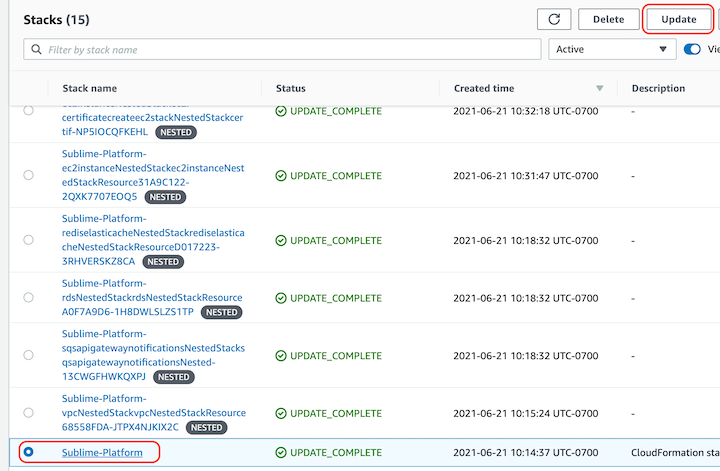
- Choose "Replace Existing Template" and enter the URL below which corresponds to your deployment region:
- us-east-1
- us-east-2
- us-west-1
- us-west-2
- eu-west-1
- eu-west-2
- eu-central-2
- eu-north-1
- ca-central-1
- ap-southeast-2
- us-gov-west-1
- Double check that the URL pasted into shows the same region as the AWS console highlights when you click on the region in the upper right. E.g. if "Virginia" is shown and the drop down highlights
us-east-1thenus-east-1should appear the URL (three times). - Select Next and edit params as follows
dbsizeparamthis param encapsulates the instance class and configured storage in terrabytes, using a base 10 definition. E.g.m6g4XLarge6TBmeans adb.m6g.4xlargewith 6000 GiB of configured storage. Reference your notes from step 2 to select the correct value.- The instance class component of the parameter should remain the same, unless you're updating specifically to increase the instance class.
- The storage value must be the same or greater than your current configured value. If your current storage value is 3000 GiB then ensure your db size param is 3TB. If your current storage was 3300, then you would need to select a 4TB option.
dbversionparamthis should match your currently configured "Engine Version" from step 2.- : Leave all other parameters as is, unless asked to do otherwise, and then Next again.
- If a parameter is blank or you're otherwise unsure, please reach out!
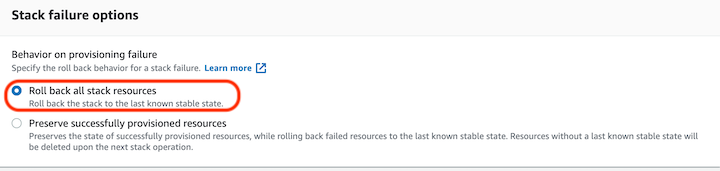
- Ensure "Stack failure options" is set to "Roll back all stack resources" and then select Next.
- If there are issues with a deploy we may ask you to change this, but if set to preserve CF will refuse to deploy certain types of changes.
- Check both of the boxes around permissions at the bottom and select "Update Stack".
- You don't need to wait for the change set to load.
- Occasionally monitor the status of the deploy -- some updates can take hours, others just minutes.
- If the stack update does fail please take a screenshot of the failure under "Events" in the "Sublime-Platform" stack. If it says that a nested stack failed to deploy, include a screenshot of the "Events" in the failed nested stack. We apologize for the issue! CloudFormation is a very sensitive and particular system, as well as being subject to transient issues from an array of AWS services!
Uninstallation
Uninstalling the Sublime Platform and securely wiping all your data is easy:
- Visit AWS CloudFormation in the region you deployed to.
- Click on the
sublime-platformStack, then clickDelete. - Delete the load balancers the cluster created. CloudFormation doesn't remove them. In the EC2 console, go to Load Balancers. For each load balancer whose name starts with
sublime-platform, turn off deletion protection (Actions > Edit load balancer attributes), then delete it. - Remove the CNAME record for your host name, and delete its certificate in AWS Certificate Manager if you no longer need it.
- CloudFormation sometimes fails to delete resources, including occasionally silent failures. Double check:
- EKS for a cluster with "sublime" in the name. If present manually delete.
- S3 check for buckets "sublime-screenshots...", "sublime-platform-messages...", "sublime-platform-audit...". If present, empty and delete.
Updated 11 days ago