

CrowdStrike Falcon Fusion (SOAR)
Set up the CrowdStrike Falcon Fusion (SOAR) integration
Overview
Connect Sublime to CrowdStrike Falcon Fusion so you can run Sublime actions as steps inside your Fusion playbooks. Setup is a one-time configuration: generate a Sublime API key, then add it to the Sublime Security app in Fusion. Works on Sublime Cloud and Self-Hosted.
Prerequisites
- Permission to create a new API Key in Sublime platform
- Access to CrowdStrike Falcon with Fusion, and permission to configure apps
- Your Sublime instance base URL (for example,
https://{server}.platform.sublime.security) - (Recommended) The Sublime NG-SIEM connector — required if you want playbooks to trigger on Sublime detections. Without it, Fusion can't receive Sublime findings as events. You can still call Sublime actions on demand or from playbooks triggered by other Falcon detections.
Sublime steps: generate an API key
- Sign in to your Sublime platform as an administrator.
- In the left-hand navigation, under Automate, select API.
- Click New Key.
- Give the key a descriptive name (for example,
Fusion SOAR Integration). - Click Save.
- Copy the API key and store it securely. The key is shown only once; if you lose it, generate a new one.
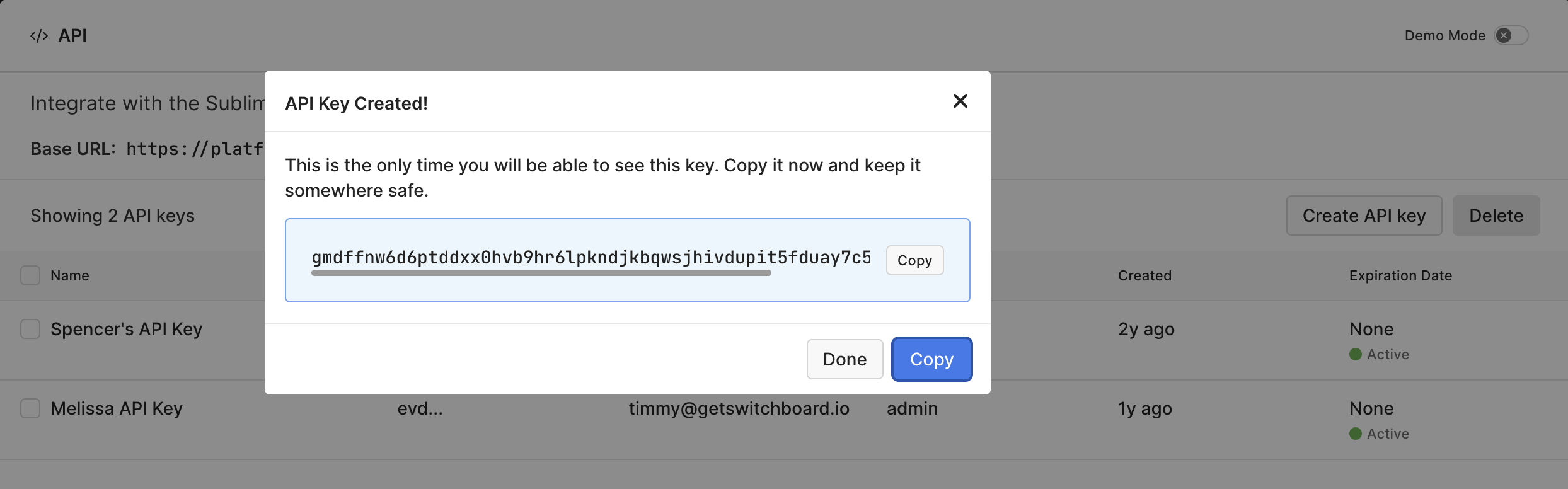
If you later rotate or revoke this key, update the Sublime Security app configuration in Fusion with the new key or actions will stop working.
CrowdStrike steps: configure the Sublime Security app in Fusion
- In Falcon, go to CrowdStrike Store, search “Sublime”.
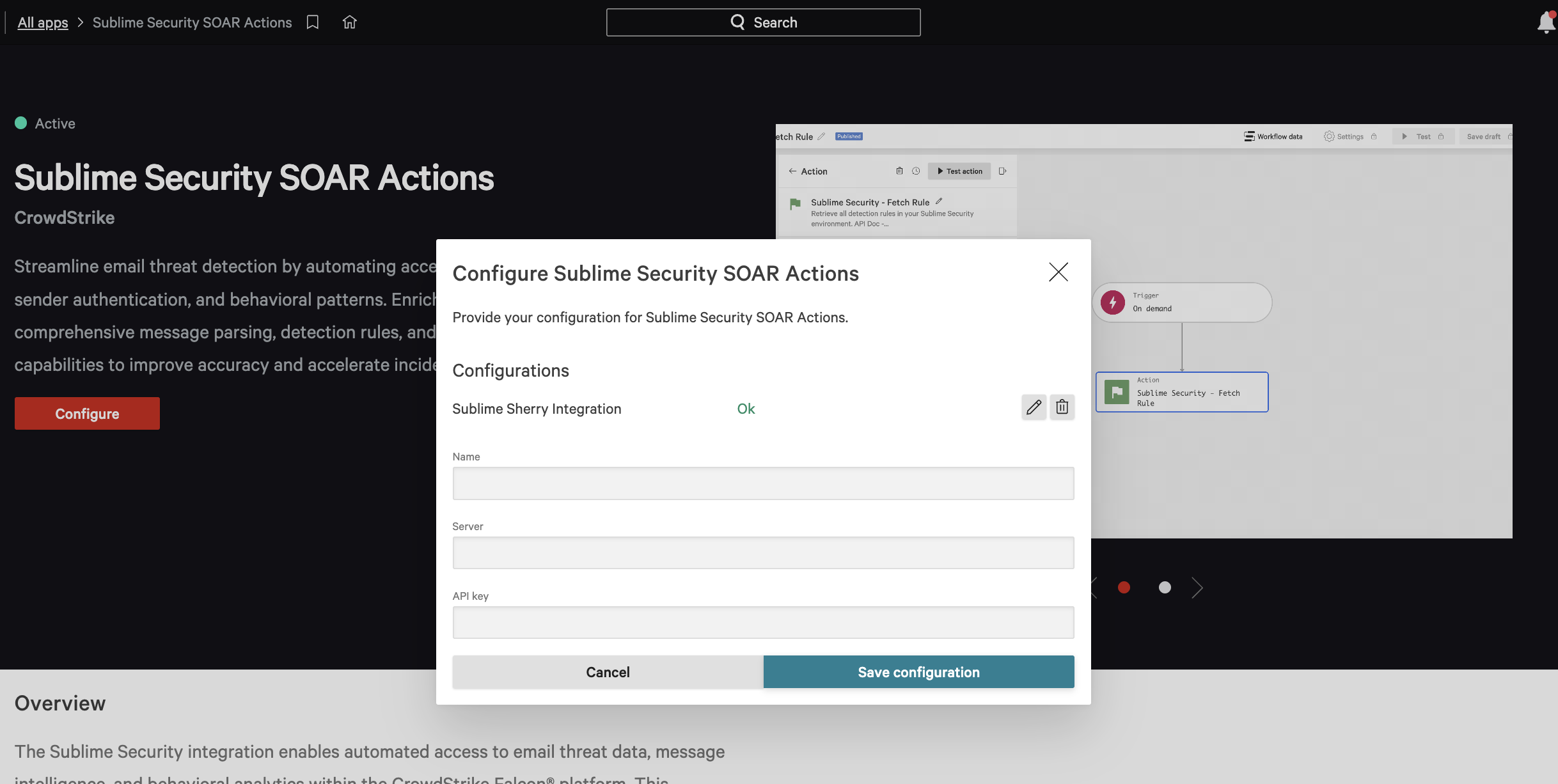
- Select the Sublime Security SOAR Actions > Configure.
- Enter your Integration Name, Server (for example,
https://{server}.platform.sublime.security) and the API Key you generated. - Save the configuration. Sublime actions become available to Fusion playbooks.
Test the connection (optional)
Run a read-only Sublime action from a test Fusion playbook and confirm a successful response. Get Message or List Mailboxes are good choices, since neither changes anything in your environment.
Available actions
Once configured, these actions can be used in any Fusion playbook. Every action defines structured inputs and parsed outputs, so later steps in a playbook can reference fields without parsing JSON by hand. Action failures return branchable error output, so playbooks can retry, route, or page.
Investigation and enrichment
| Action | What it does |
|---|---|
| Get Message | Retrieves a single message by ID |
| List Message Group | Searches message groups by sender, domain, subject, mailbox, attachment SHA256, or IOC |
| Analyze a Raw Message | Runs a raw message through detection rules and returns the result |
| Create Message | Creates a message record in Sublime |
| List Mailboxes | Returns the mailboxes in your environment |
Hunt
| Action | What it does |
|---|---|
| Get Job Hunt | Retrieves an existing hunt job and its results. Hunts cannot be started from Fusion |
Detection-rule management
| Action | What it does |
|---|---|
| Retrieve Rule | Reads a single detection rule |
| Create Rule | Creates a detection rule |
| Activate Rule | Activates a detection rule |
| Deactivate Rule | Deactivates a detection rule |
| Delete Rule | Deletes a detection rule |
List management
| Action | What it does |
|---|---|
| Create List | Creates a list |
| Get List Entry | Retrieves a single entry from a list |
| Fetch List | Retrieves lists |
Response and remediation
| Action | What it does |
|---|---|
| Quarantine Message Group | Quarantines every message in the group |
| Trash Message Group | Moves every message in the group to trash |
| Restore Message Group | Restores a quarantined or trashed message group |
| Move Message Group to Spam | Moves the group to the spam folder |
| Review Message Groups | Applies a message classification (Malicious, Benign, Graymail, Spam, or Simulation), action, and comment to message groups |
| Dismiss Message Group | Dismisses the group without acting on the messages |
For Fusion playbook mechanics, triggers, and workflow building, see CrowdStrike's Fusion SOAR user guide.
Updated 2 months ago