

Set up the CrowdStrike Falcon Sandbox integration
Prerequisites
- An active CrowdStrike Falcon subscription that includes the Sandbox module
- Permission to create a new API client in CrowdStrike Falcon
- Your Falcon cloud / tenant URL (e.g.,
https://api.crowdstrike.com,https://api.us-2.crowdstrike.com,https://api.eu-1.crowdstrike.com)
Step 1: Create an API client in CrowdStrike
- Sign in to your CrowdStrike Falcon console.
- Go search bar and look for API clients and keys.
- Create a new API client. Give it a descriptive name (e.g.,
Sublime Sandbox Integration). - Grant the new client access to the Sandbox (Falcon Intelligence) module — read + write scopes required to submit samples and retrieve verdicts.
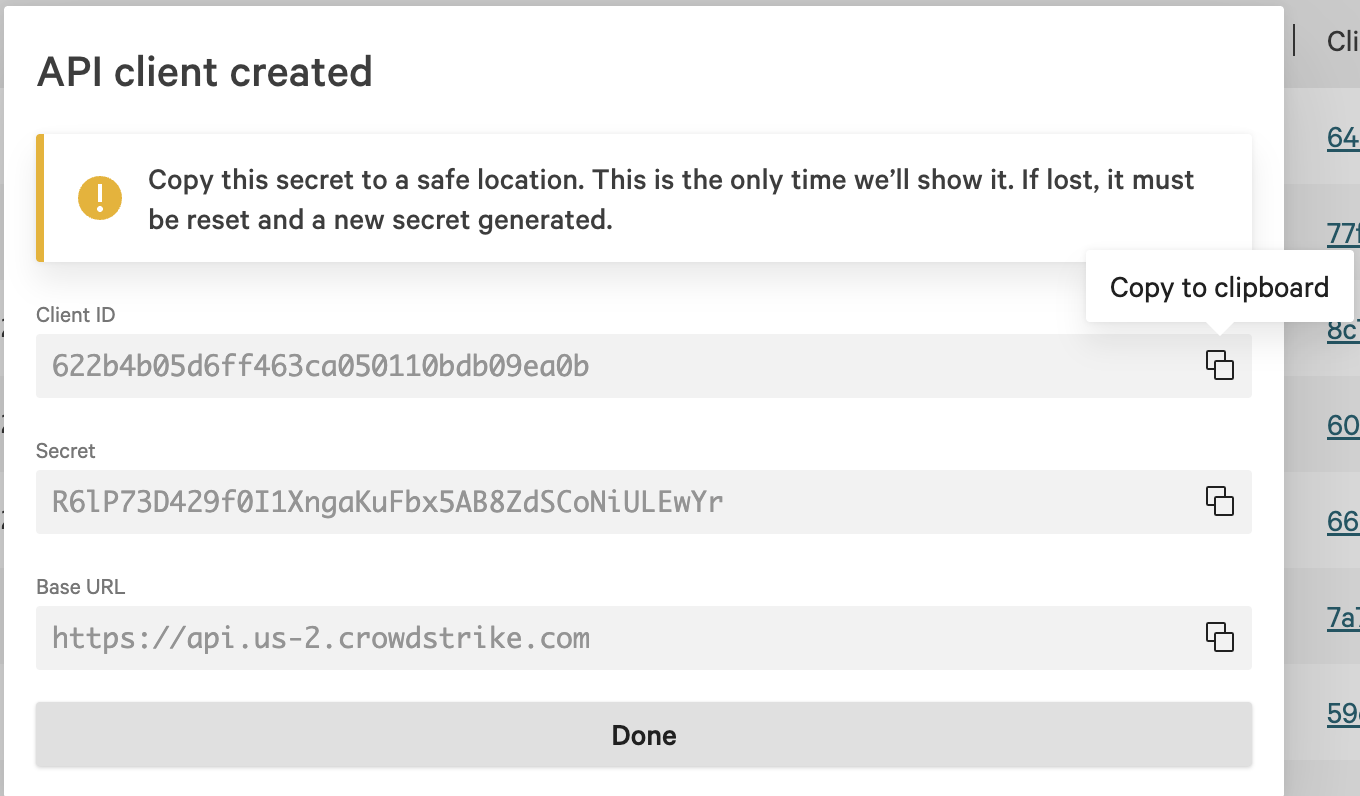
- After creating the client, copy and save the Client ID and Client Secret somewhere secure — the secret is shown only once.
- Note your Falcon tenant URL (visible in the API client setup screen).
Step 2: Configure the integration in Sublime
Prerequisite: permission to access set_external_api_keys; by default applied to the admins role
-
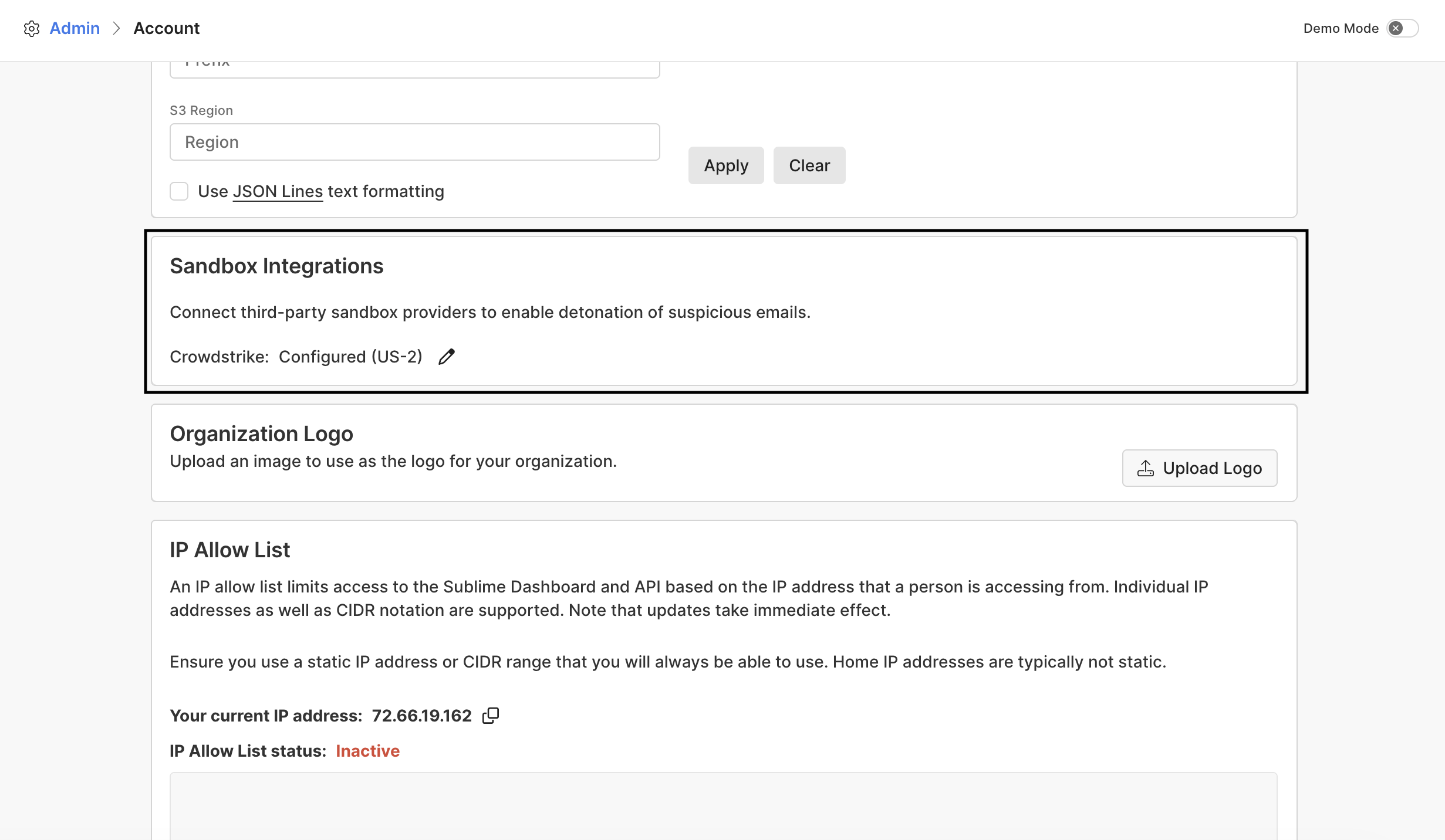
In Sublime, go to Account, scroll to Sandbox Integrations.
-
Enter:
- Client ID — from Step 1
- Client Secret — from Step 1
- Cloud Regions — select your Falcon cloud region
- Tenant URL — enter API base URL
-
Click Apply.
Step 3: Verify the integration
Prerequisite: permission to access UseCrowdstrikeSandbox
- Open any flagged message in the message detail view (MDV).
- Send sample via the Send EML to CrowdStrike Sandbox action in the right-side action panel.
If the action button doesn't appear or submissions fail, see Troubleshooting the CrowdStrike Sandbox integration.
Updated 3 months ago