

Microsoft365 Partner Onboarding Guide
Step 1 – Creating the new Child-Organization
You can create a new Child Organization via the frontend or API:
Frontend:
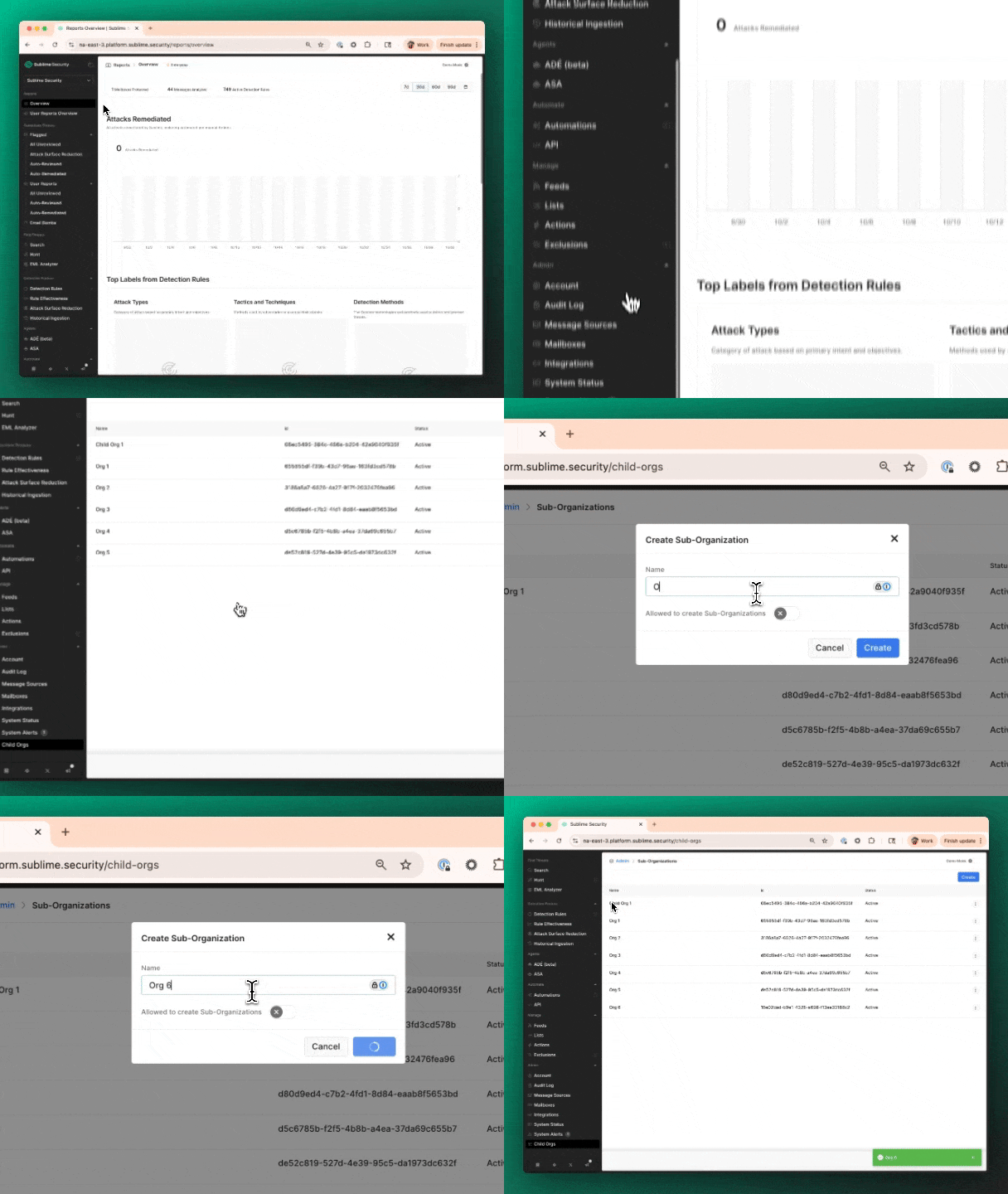
Navigate to Admin -> Child Orgs
Click Click the “Create” button
Step 1 – Create the message source
Make a POST request {BASE_URL}/v1/admin-auth in order to generate an authentication link:
Example curl request:
curl --request POST \
--url {BASE_URL}/v1/admin-auth \
--header "Authorization: Bearer {YOUR_API_KEY}" \
--data '{"provider": "microsoft"}'
Share the generated link with the customer and request that their Global Admin uses the link to authenticate
The following page will provide an authentication link. Share the link and request that a Super Admin use the link to authenticate.
API approach for Google Workspace:
curl --request POST \
--url {BASE_URL}/v1/admin-auth \
--header "Authorization: Bearer {YOUR_API_KEY}" \
--data '{"provider": "google"}'
Step 2 – Finish connecting the message source
You’ll navigate back into the Message Source setup to complete the connection (Admin -> Message Sources -> click “Add new message source”):
- Click the “Microsoft 365 (Non-Admin)” option
- Use any Microsoft 365 account to authenticate (this is not related to, nor is associated with the customer’s tenant)
Step 3 – (Optionally) start the historical ingestion process and activate rules
The following page will prompt you to (optionally) start a historical ingestion – which crawls back the last 30 days’ worth of email data and performs historical analysis in order to build organizational context, etc.
Important: Please feel free to ping Sublime if you want to walk through the end-to-end set up together for the first few customers.
Activate all rules
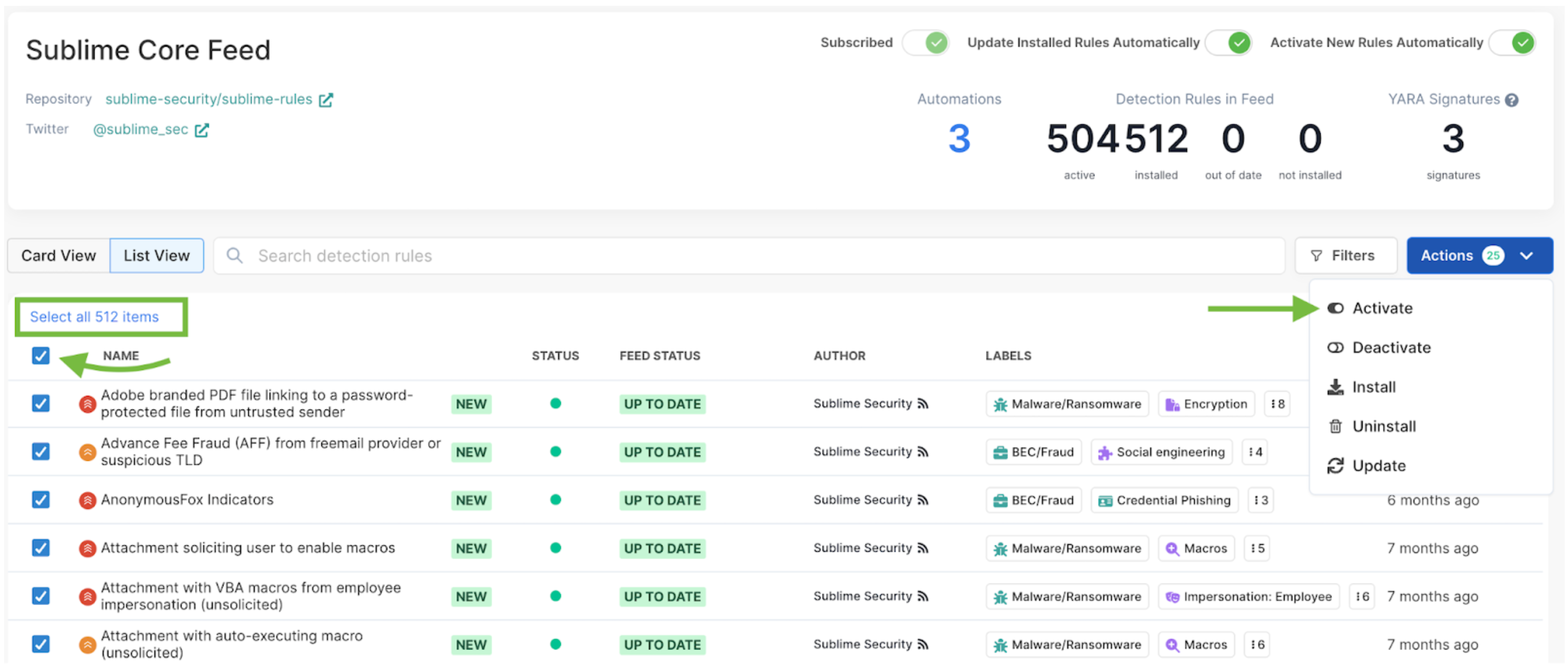
- Navigate to Detection Posture -> Feeds
- Click into “Sublime Core Feed”
- Select all the rules and then click “Activate” (see screenshot below)
Updated 10 months ago