

Instance Review (Admin Setup Guide)
Before you start
- If you use an abuse mailbox for user reports, confirm the abuse mailbox address you intend to use.
- If you run phishing simulations, confirm what sender domains and headers your simulation platform uses.
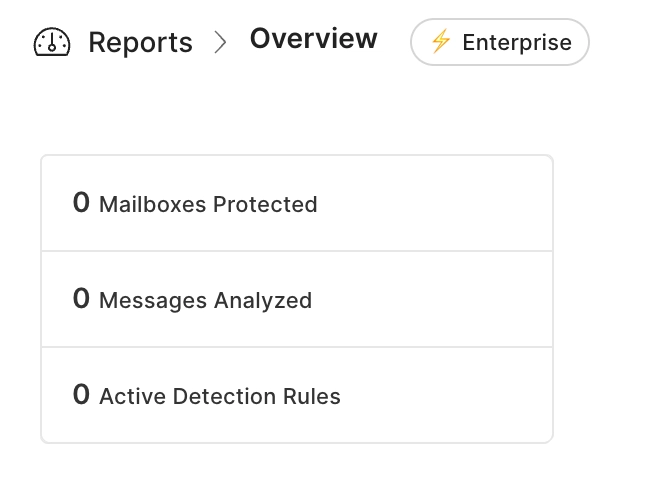
1) Confirm mailboxes are activated (licensing + coverage)
- In the left sidebar, open Overview.
- Alternatively, open the Mailboxes tab.
- Confirm:
- The number of Active mailboxes matches your expectations.
- You are not significantly over or under the contracted mailbox count.
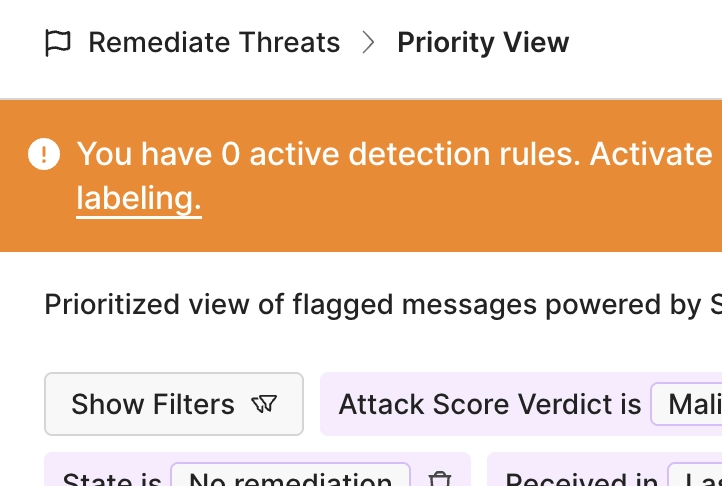
2) Confirm the messages are being received (Flagged message View)
- In the left sidebar, open Flagged.
- Confirm:
- Mail is being received (ingested in live flow).
- Messages are being reviewed and dispositioned (not consistently left unattended).
- Automations are clearing out priority view
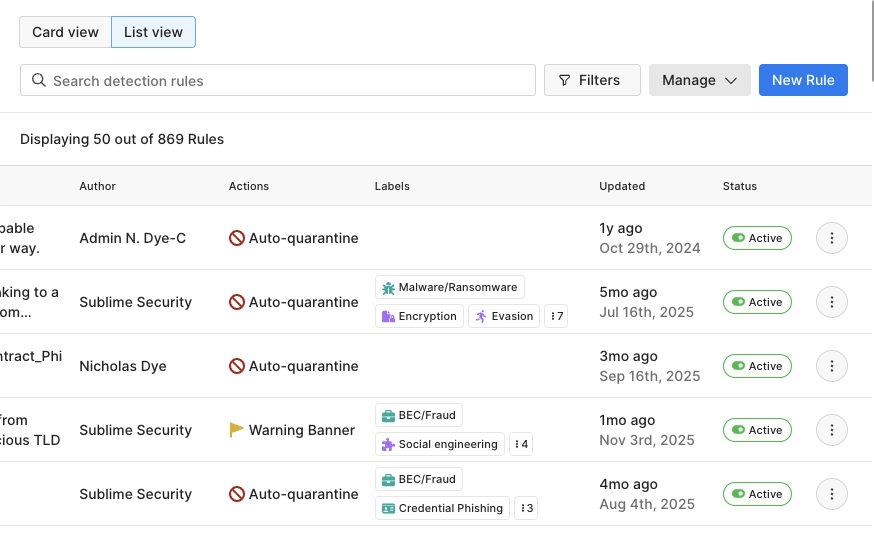
3) Confirm detection rules are active and syncing
- In the left sidebar, open Detection Rules.
- Confirm:
- Default rules are present and enabled as expected.
- Any rules your team created are present.
- New rules are syncing and appearing in the UI.
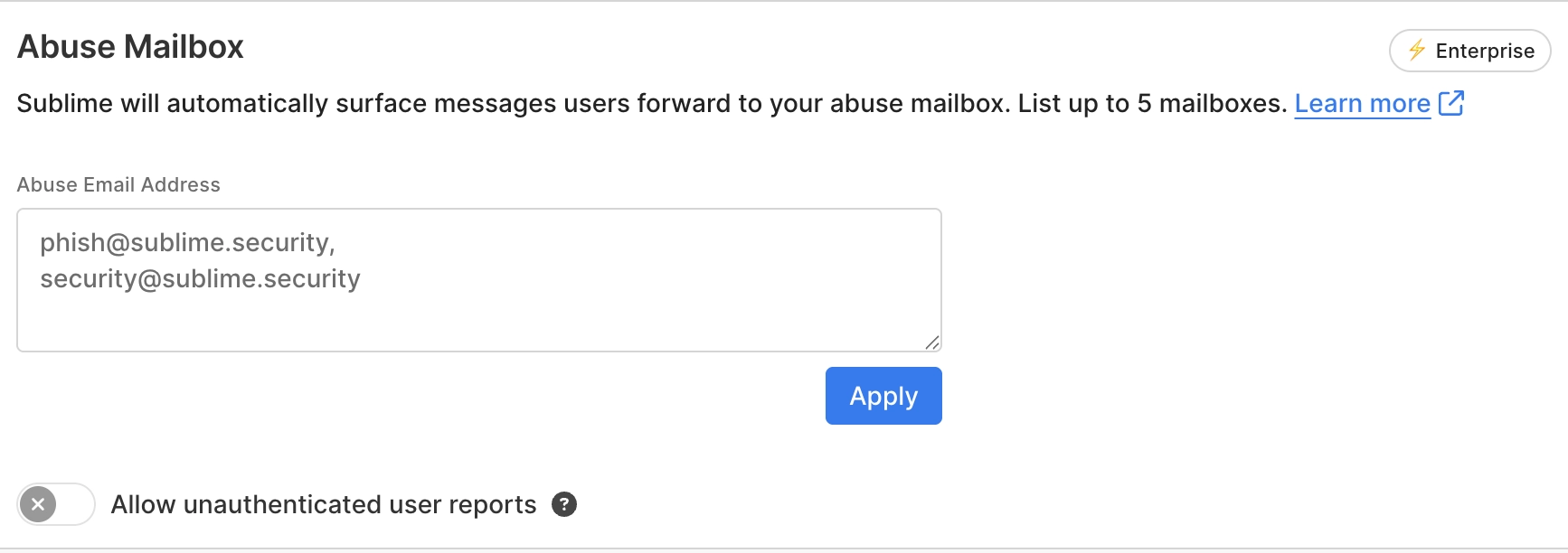
4) Confirm an abuse mailbox is configured (required for user reports)
- In the left sidebar, open Account.
- Confirm:
- An abuse mailbox is configured.
- The mailbox is accessible by your team and actively monitored.
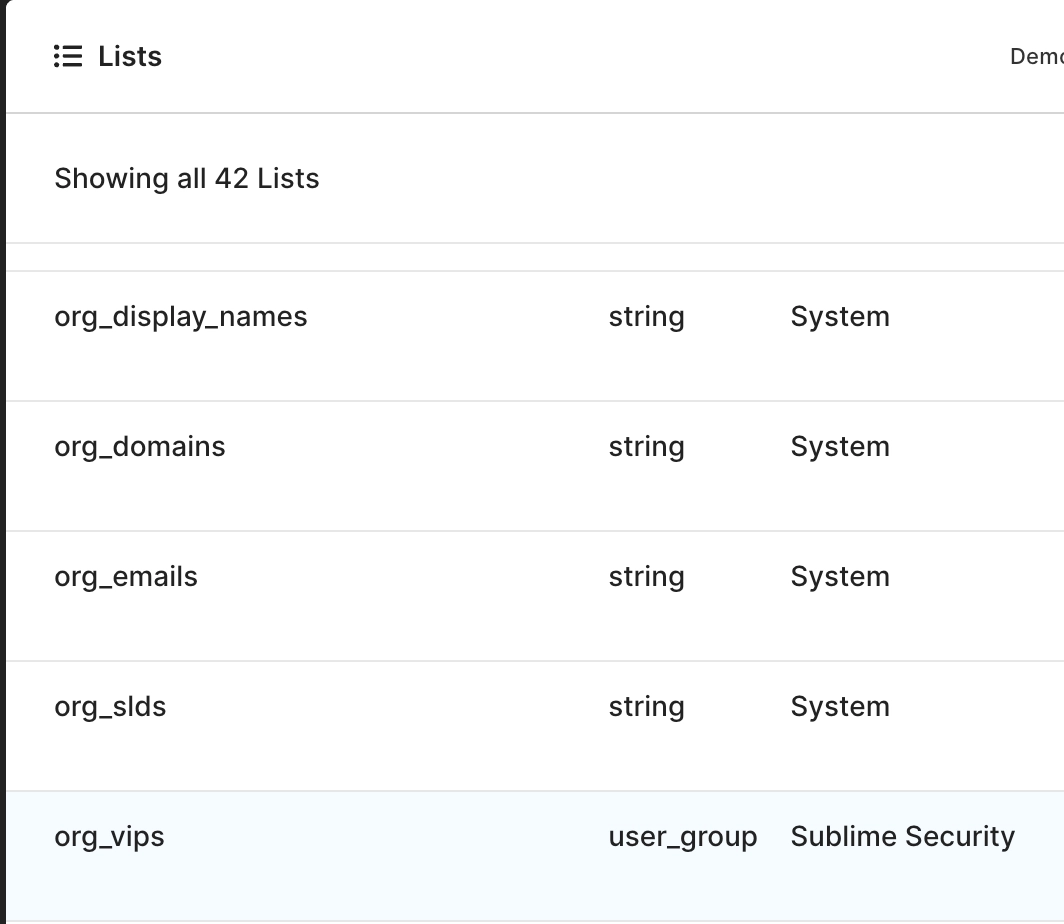
5) Confirm VIPs are configured (recommended)
VIPs often warrant different handling, rules, or alerting.
- Open List view: org_vip.
- Confirm:
- An org_vip list exists.
- VIP entries are present and up to date.
6) Confirm phishing simulation exclusions are set
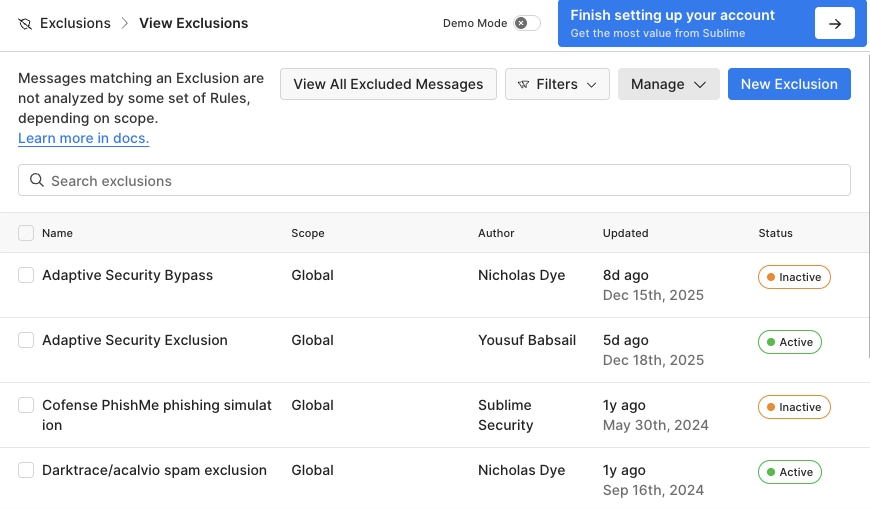
- In the left sidebar, open Exclusions.
- Confirm:
- Global exclusions are configured for your phishing simulation traffic.
- Simulated phish is allowed through (so it does not skew detections or user experience).
7) Review Rule Effectiveness (tuning + health)
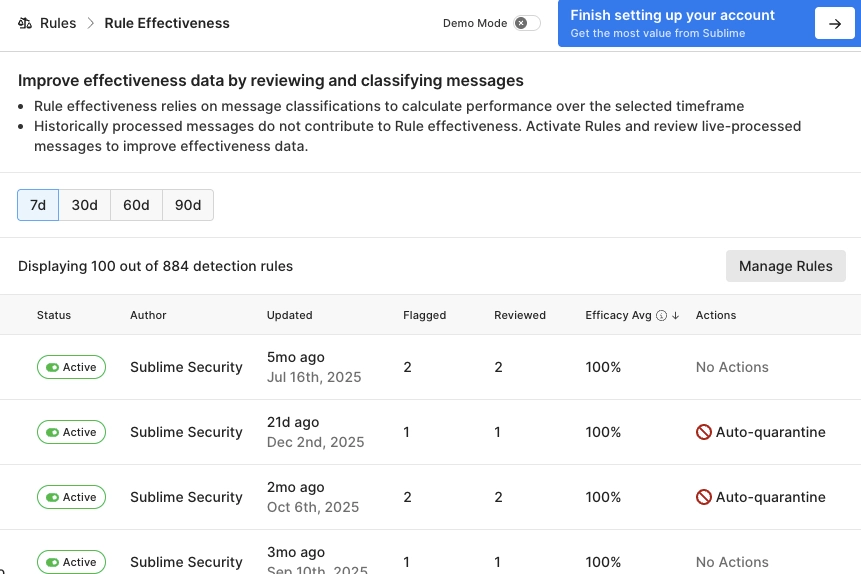
- In the left sidebar, open Rule Effectiveness.
- Confirm:
- Overall effectiveness is healthy.
- Any metric below 100% is understood and has an owner for tuning.
8) Confirm automations are configured for core outcomes
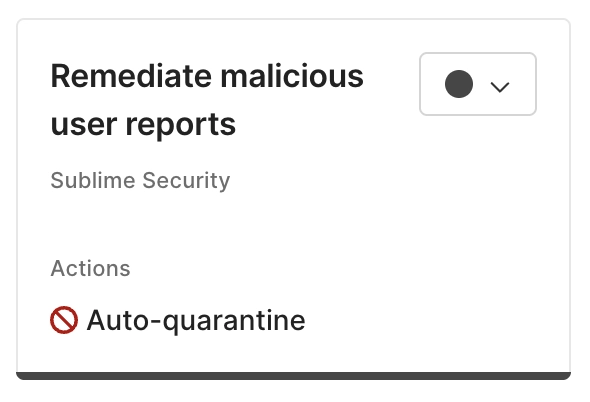
- Open your Triage Rules & Automations.
- Confirm:
- Malicious messages are handled by active automations (not passive or turned off).
- Spam automations are configured as expected.
- Graymail and Suspicious may require more manual review, but should still have a clear workflow.
9) Validate routing edge cases (aliases and groups)
Confirm whether you use any:
- Email aliases
- Shared mailboxes
- Google Groups / Microsoft 365 Groups
- Forwarding rules that push messages into other systems
If yes, document:
- Where messages originate
- Where they end up
- Which mailboxes Sublime should be monitoring
10) Hunting best practices (recommended ongoing checks)
- Review Flagged regularly and disposition messages consistently.
- Check for newly-created rules and confirm they are behaving as intended.
- Revisit Rule Effectiveness after major policy changes or mailbox additions.
What to do if something looks off
- If you are missing mailboxes, start with mailbox activation and permissions.
- If review activity is low, confirm who owns monitoring and what the review cadence is.
- If effectiveness is low, identify which rules are underperforming and tune or adjust scope.
Updated about 1 month ago