

Google Workspace Partner Onboarding Guide
Step 1- Create the message source
UI Approach:
- Navigate to Admin -> Message Sources
- Click “New message source”
- Select the Google Workspace (Non-Admin) option
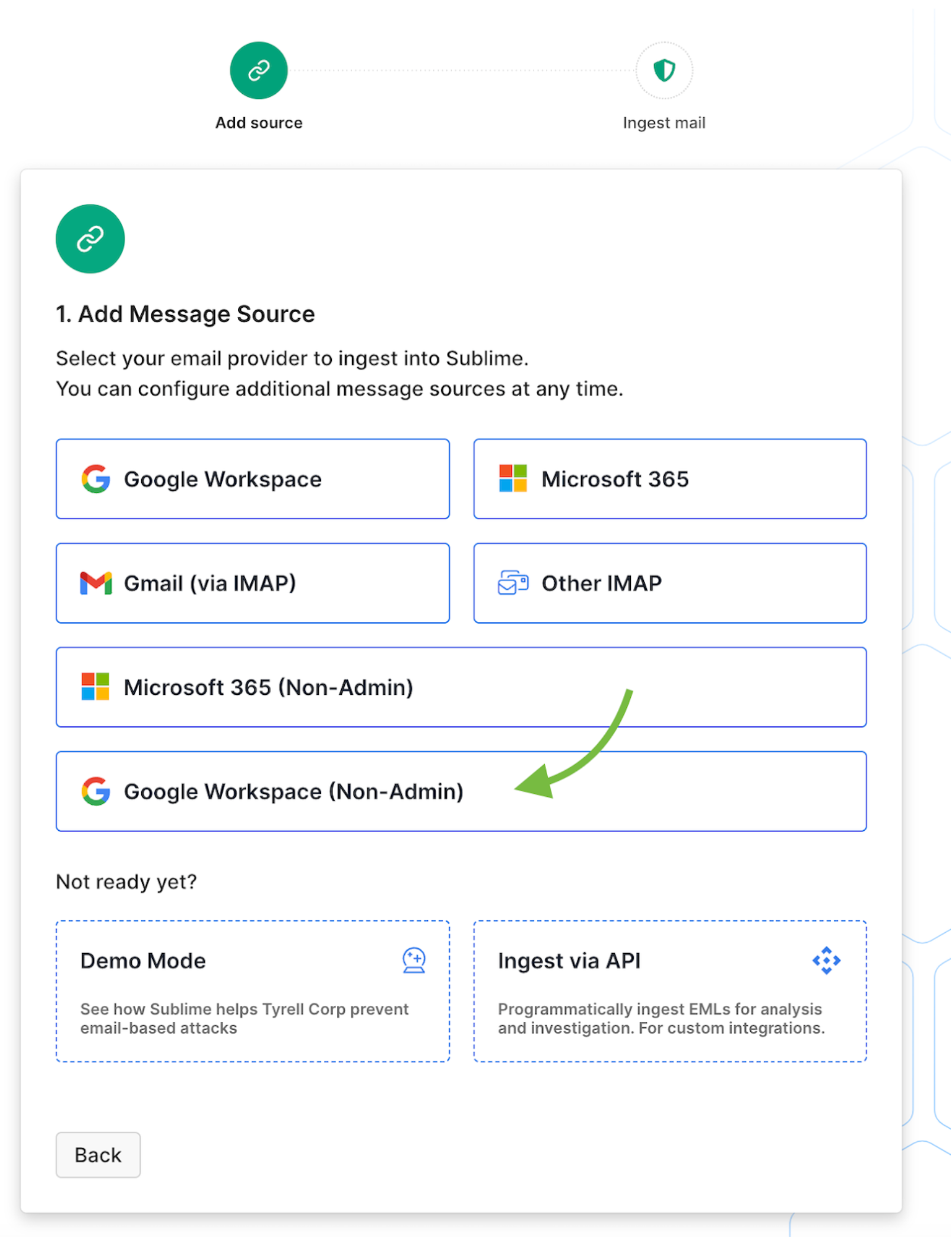
The following page will provide an authentication link. Share the link and request that a Super Admin use the link to authenticate.
API approach:
curl --request POST \
--url {BASE_URL}/v1/admin-auth \
--header "Authorization: Bearer {YOUR_API_KEY}" \
--data '{"provider": "google"}'
Step 2 – Finish connecting the message source
You’ll navigate back into the Message Source setup to complete the connection (Admin -> Message Sources -> click “Add new message source”):
- Click the Google Workspace (Non-Admin) option
Assuming the customer authenticated correctly using the previously provided link, you should see the mailboxes load. Select them all to activate.
Step 3 – (Optionally) start the historical ingestion process and activate rules
The following page will prompt you to (optionally) start a historical ingestion – which crawls back the last 30 days’ worth of email data and performs historical analysis in order to build organizational context, etc.
Important: Please feel free to ping Sublime if you want to walk through the end-to-end set up together for the first few customers.
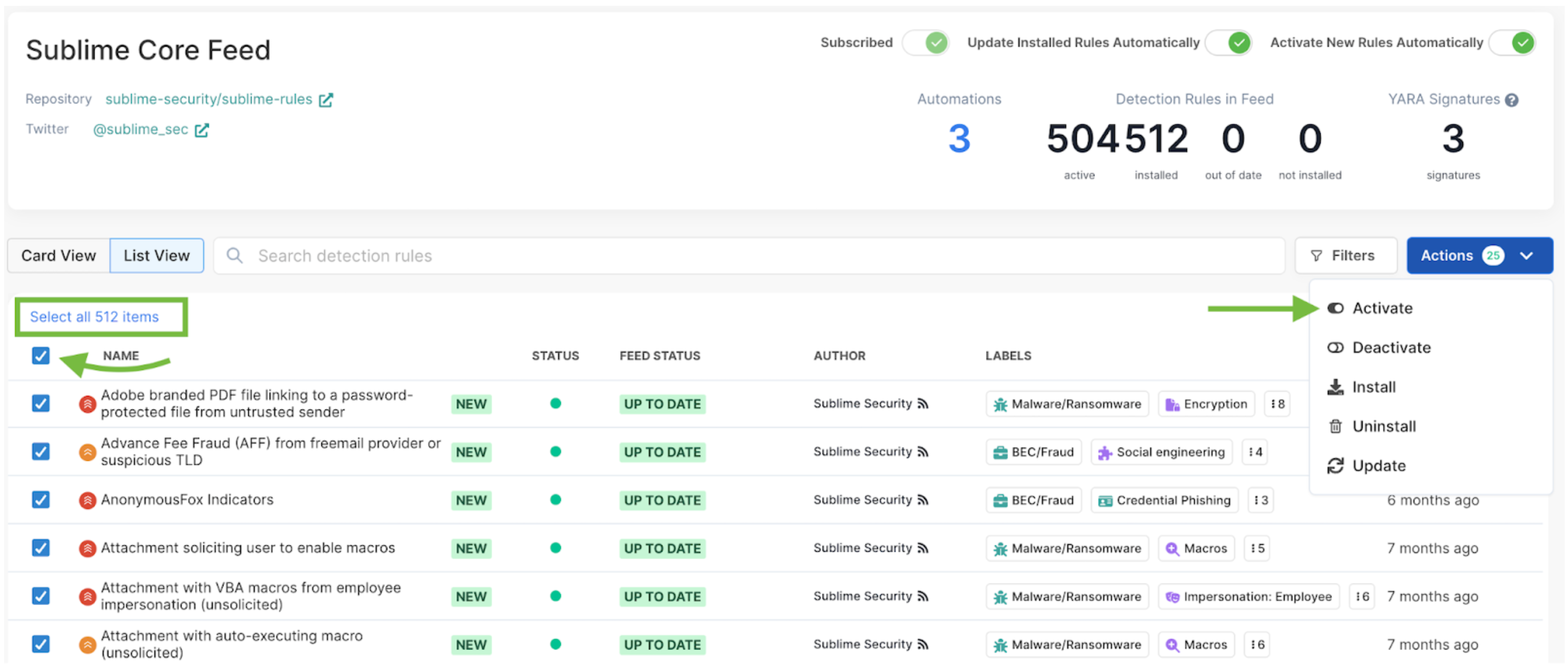
Activate all rules
- Navigate to Detection Posture -> Feeds
- Click into “Sublime Core Feed”
- Select all the rules and then click “Activate” (see screenshot below)
Updated about 1 month ago