

Email Encryption for Microsoft365 customers
Overview
The Trigger Provider Encryption Action encrypts outbound messages with Microsoft Purview Message Encryption when a DLP Rule or Automation matches. Sublime adds the header X-Sublime-Provider-Encrypt: true to the message, and an Exchange transport rule encrypts any message that carries it.
Contact Sublime Security Support firstSublime enables the Trigger Provider Encryption Action for your instance before you begin. Reach out to your Sublime contact or [email protected].
Prerequisites
- A Microsoft 365 E3, E5, or Business Premium license.
- DLP set up for Microsoft 365, through Microsoft 365 DLP settings or DLP settings for self-managed Microsoft 365 users.
- A Microsoft 365 admin who can edit Exchange transport rules.
Create the encryption transport rule
The action Trigger Provider Encryption in Sublime will automatically add the header X-Sublime-Provider-Encrypt = true to the header of an outbound e-mail message. You will create a transport rule in Microsoft365 to apply encryption on any outbound message that has that header.
-
Click Add a rule and select Apply Office 365 Message Encryption and rights protection to messages.
-
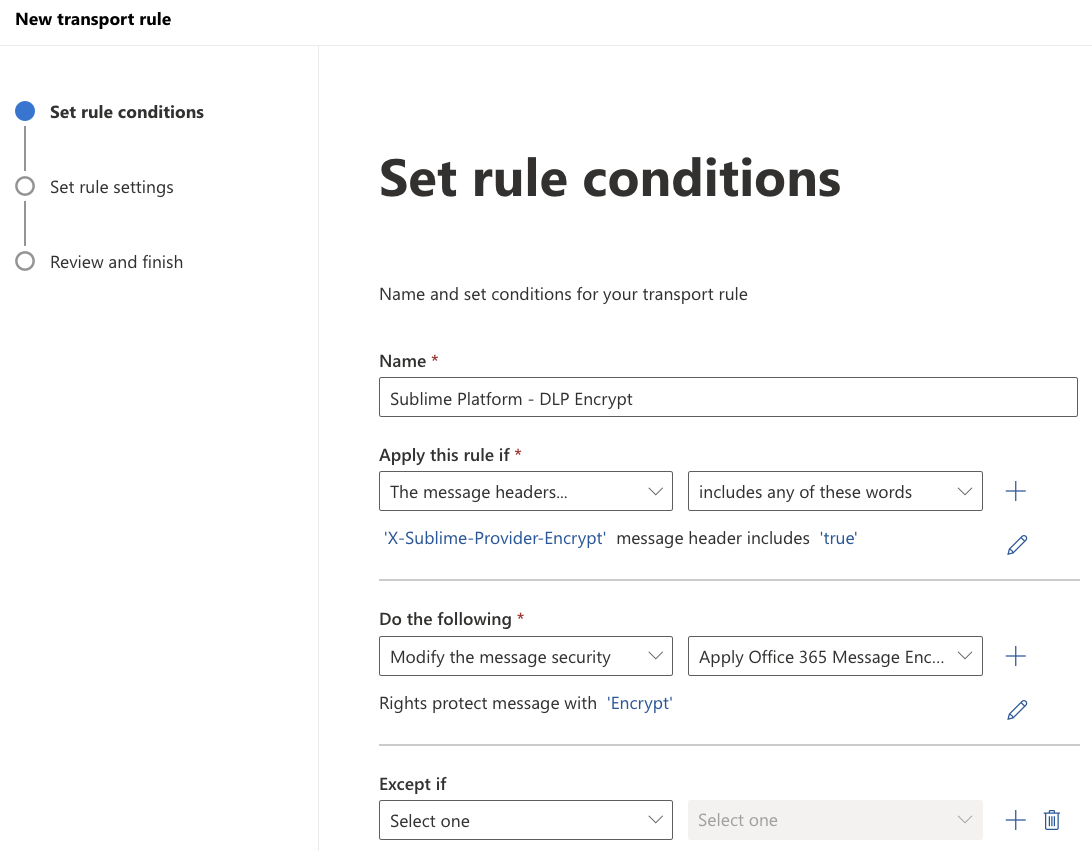
Configure the rule:
- Name: Sublime Platform - DLP Encrypt
- Condition: The message headers → includes any of these words
- Header: X-Sublime-Provider-Encrypt
- Words: true
- Action: Modify the message security → Apply Office 365 Message Encryption and rights protection, then select the Encrypt template.
- Exceptions: none
-
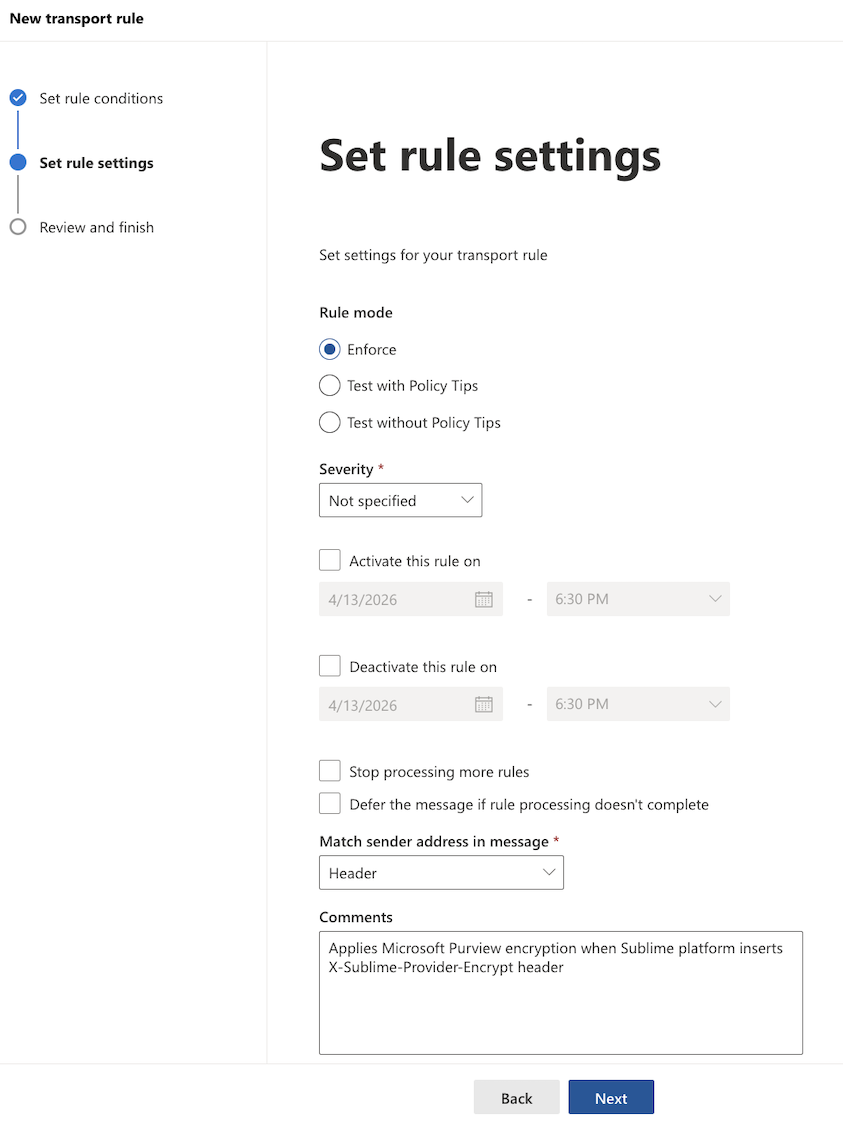
Click Next and configure the rule settings as follows:
-
Optional: Check "Stop processing more rules"
Stop processing more rules depends on rule priority
Exchange runs transport rules in priority order, starting at 0. For messages that match this rule, Stop processing more rules skips every rule with a lower priority (a higher number). Rules above it still run.
Before you turn it on, review your transport rules list. Move any rule that also needs to run on encrypted messages, such as a disclaimer or signature rule, above Sublime Platform - DLP Encrypt. If you can't reorder your rules, leave this box unchecked.
-
Comment (optional): Applies Microsoft Purview encryption when Sublime adds the X-Sublime-Provider-Encrypt header
-
-
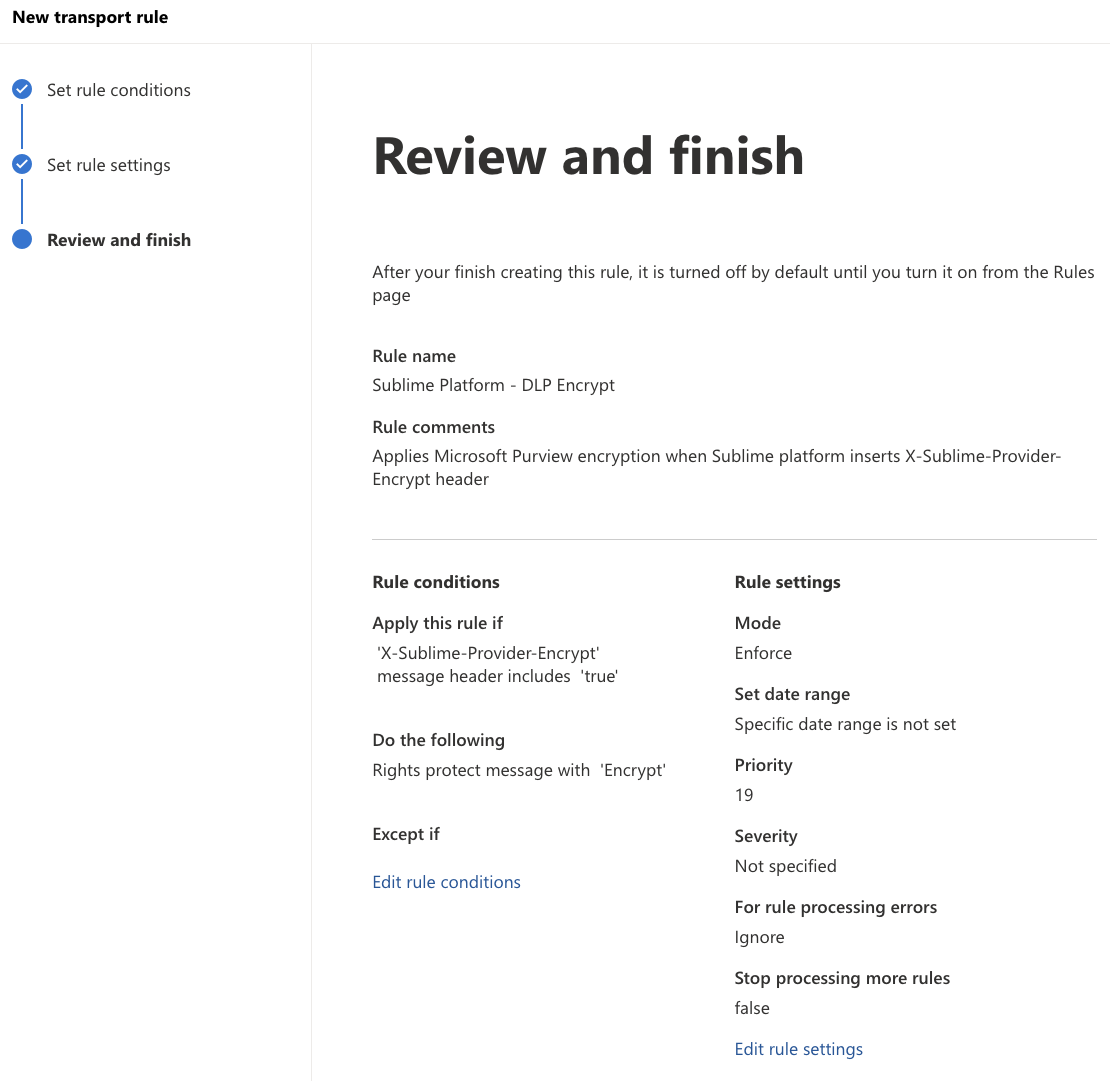
Click Next, review your settings, and click Finish.
-
In the rules list, check the rule's Priority and move it if needed. Then turn its
EnabledswitchOn.
Test
- Add the Trigger Provider Encryption Action to a DLP Rule, for example one that detects US Social Security numbers.
- From a mailbox that Sublime monitors, send a message that matches the rule to a personal email address.
- Confirm the message arrives encrypted.
Disabling DLP Encryption
Turn off the Sublime Platform - DLP Encrypt transport rule in the Exchange Admin Center. Matching messages then deliver without encryption.
Updated 23 days ago