

Configuring Microsoft Safelinks Click Tracking
This enterprise-only feature, currently in beta, helps you track when users click on links in emails. It integrates with Microsoft Defender SafeLinks to provide visibility into link clicks, allowing you to see when potentially malicious links are accessed.
-
If you have Sublime deployed through a self-hosted instance you will need to add the
ThreatHunting.Read.Allscope to the your Azure application that was created when you created your message source. Follow the instructions under step 6 here to add this permission. Customers deployed through Sublime's fully managed offering (SaaS/cloud) will need to grant this permission through a link provided by your Sublime representative. -
You must have Microsoft Defender XDR enabled. You can verify that this is enabled by navigating to https://security.microsoft.com/, you should see "Welcome to Microsoft Defender", and not another screen asking to onboard.
-
Enable the Safelinks policy
-
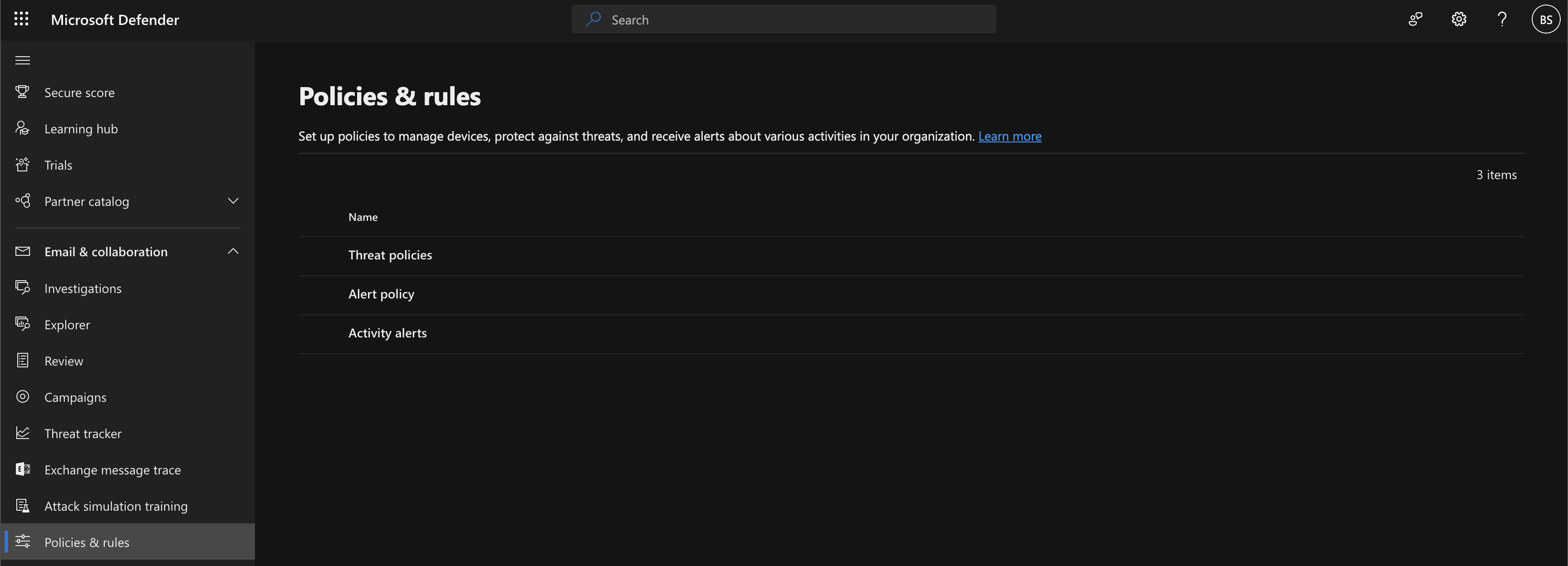
Navigate to "Policies & Rules"
-
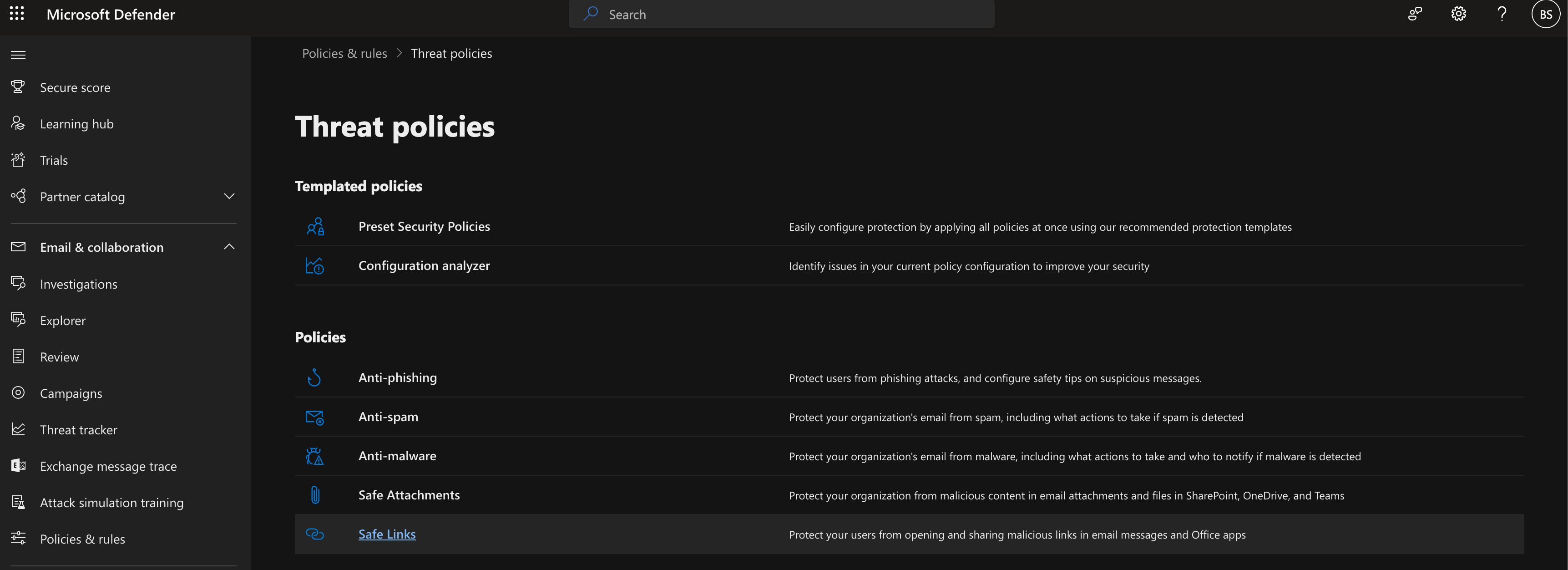
Click "Threat policies", and then "Safe Links"
-
Create a new Safe Links Policy using the wizard. Ensure that the policy is enabled, and that the priority is highest (priority 0). Keep configuration options at their defaults, and decide on the "Do not rewrite URLs, do checks via Safe Links API only" checkbox. The setting is optional, because Sublime ingests click events either way, so choose whichever requires the least change to your current setup:
- Setting up Safe Links for the first time? Leave the box checked (the default), so your links aren't suddenly rewritten for users.
- Already have a Safe Links policy with this box unchecked? Leave it unchecked. You don't need to change it for Sublime.
When the box is unchecked, Microsoft wraps links in the
safelinks.protection.outlook.comformat that step 4 checks for.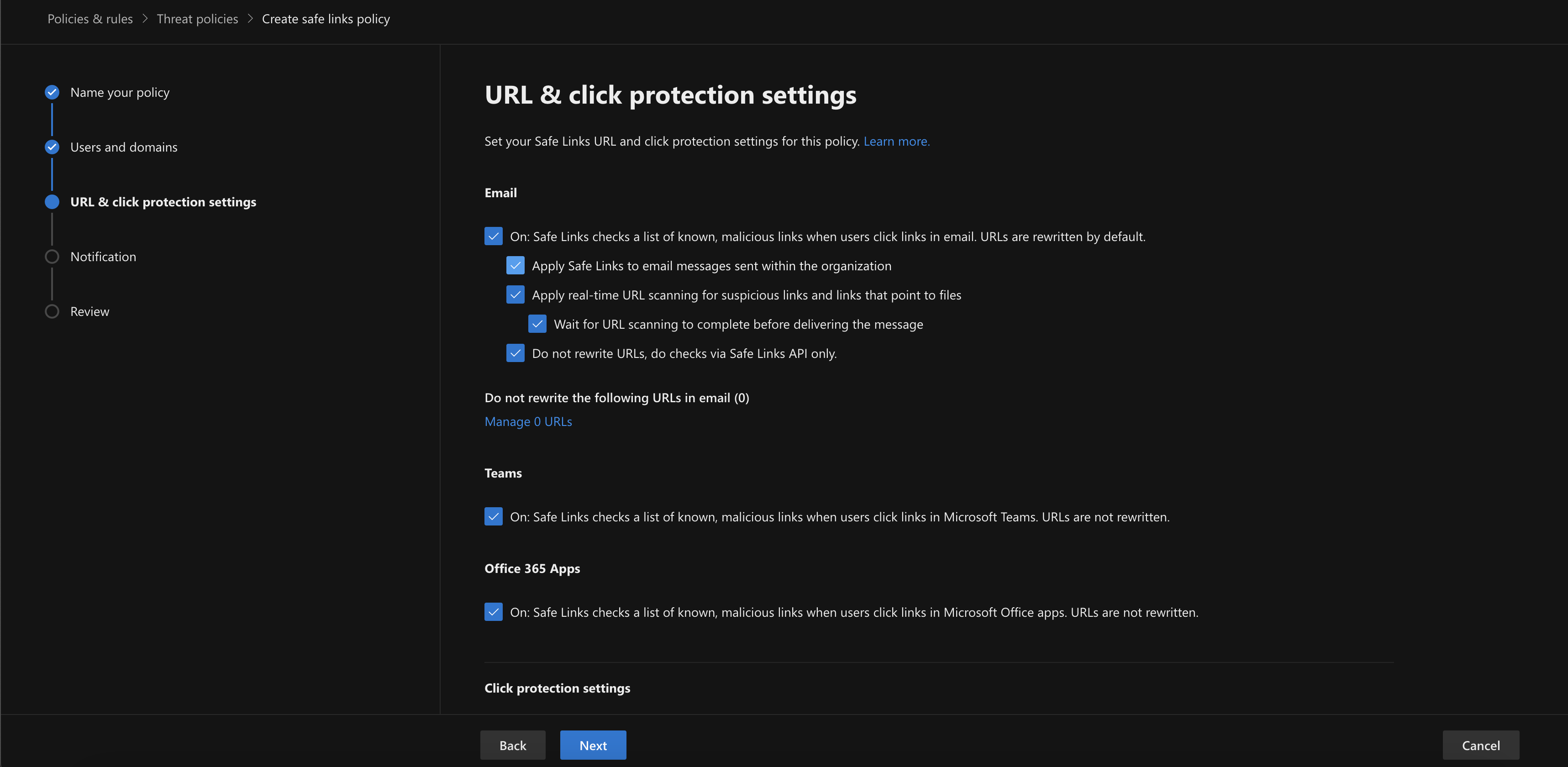
-
Verify that link clicks are being populated by sending an account that is covered by the policy an email with a link, then clicking that link.
- If you left "Do not rewrite URLs..." unchecked in step 3, the link in that user's inbox is wrapped in the format
https://nam12.safelinks.protection.outlook.com/?url=<your_url_here>. - If you left it checked, the link appears unchanged. This is expected. Click tracking still works, since Sublime ingests click events whether or not Microsoft rewrites the URL.
- If you left "Do not rewrite URLs..." unchecked in step 3, the link in that user's inbox is wrapped in the format
-
Verify that the urlClickEvent was populated via the "Hunting" tab, by running the query
urlClickEvents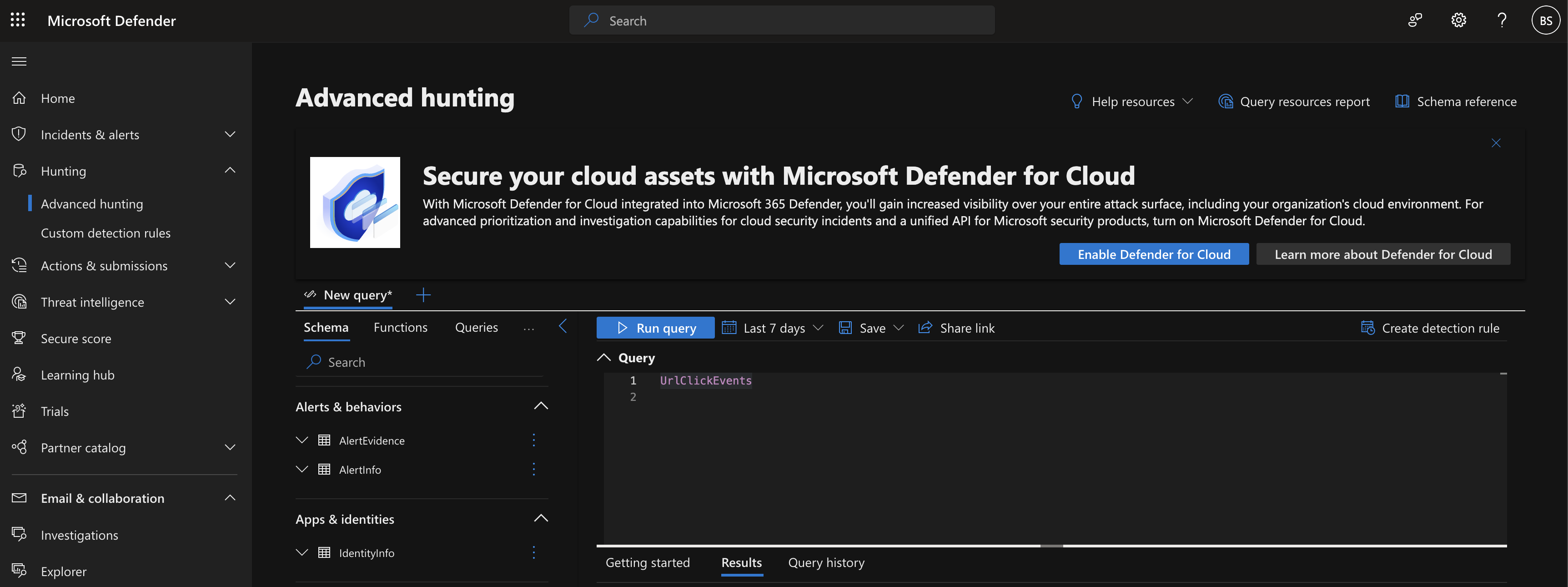
-
-
Provide your Sublime representative with your organization ID. They will need to enable a feature flag to configure the integration.
-
Verify that the click was ingested in the MDV for that message.
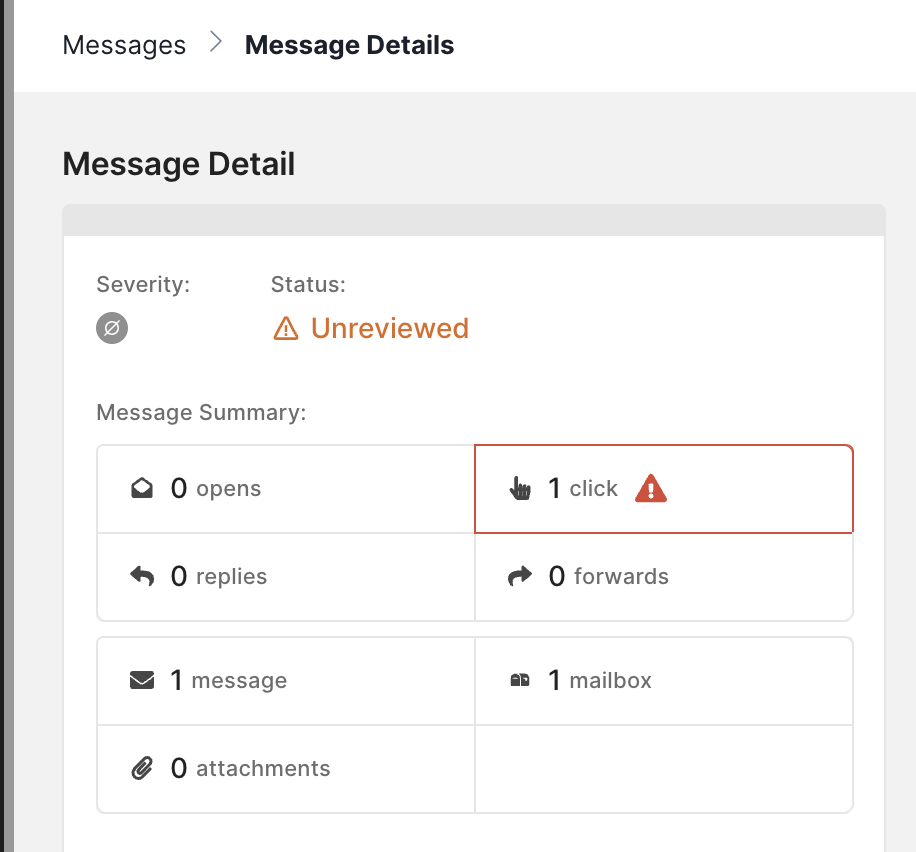
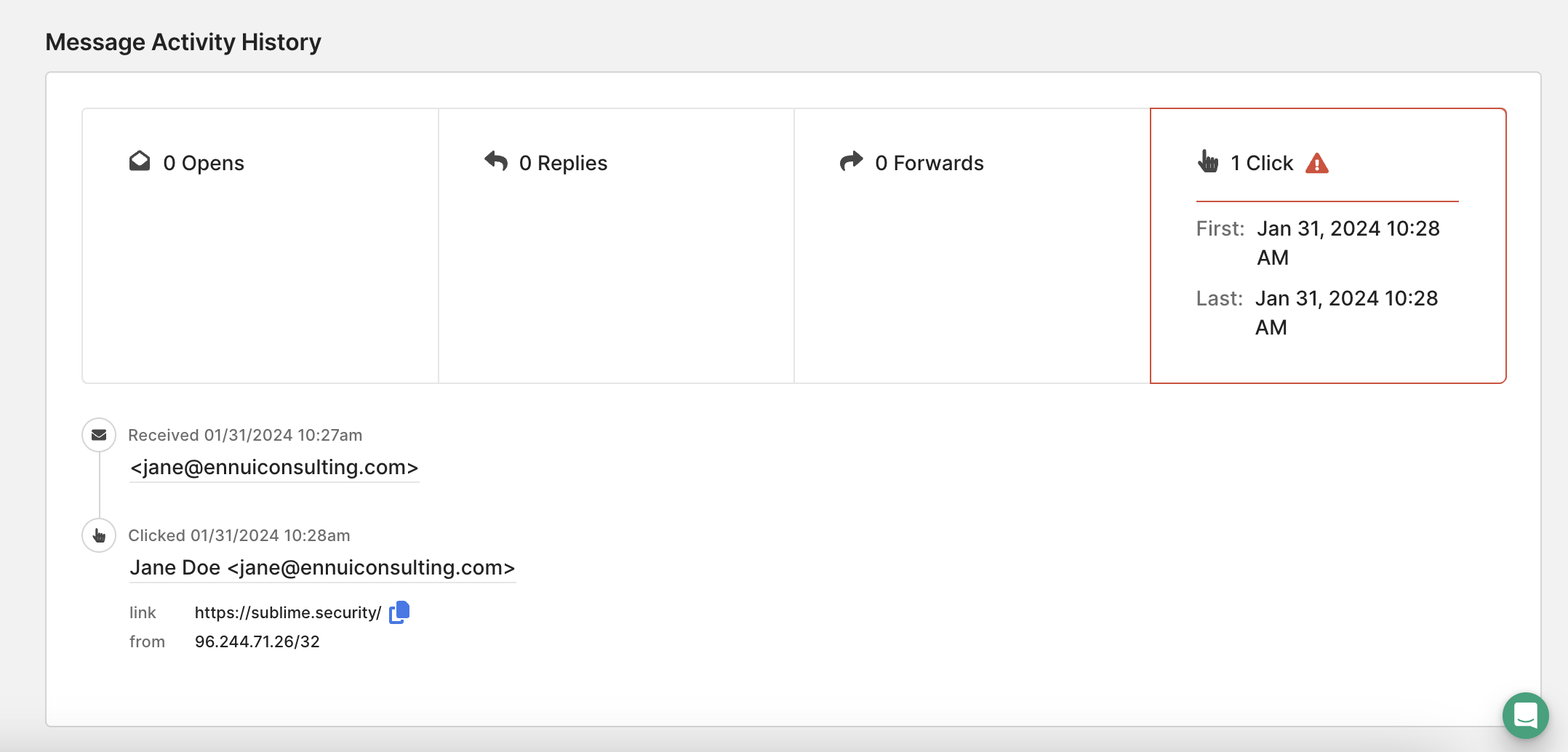
Time to processLink click data may take several minutes to appear in Sublime due to collection timing and Microsoft API delays. While you may see a lag in data appearing, all timestamps shown will reflect when users actually clicked the links.
Updated 15 days ago